How to search your saved links with Spotlight on iPhone
Published · 5 min read
You know you saved that link, but opening an app, picking a tab and scrolling a long list takes longer than the thing is worth. The fastest search on an iPhone is the one you can reach from the Home Screen: Spotlight.
This guide shows how to use Spotlight to search your saved links, what it finds by itself and what it does not, and how Linkeeper adds your saved links to it. Menu names are from recent iOS versions and can differ slightly on yours.
How do I search my saved links with Spotlight on iPhone?
Spotlight is the search built into iOS. It searches the iPhone itself and, depending on your settings, some of your apps' content too.
- 1On the Home Screen, swipe down from the middle of the screen. You can also tap the Search pill just above the Dock.
- 2Type a word you remember: part of the title, the name of the site, or a topic.
- 3Look through the results. Results from apps are grouped under each app's name.
- 4Tap a result to open it. If the result belongs to an app, it opens in that app.
What does Spotlight find among my saved links on its own?
That depends on where you saved the link, because Spotlight only searches content an app chooses to share with it:
- Apple Notes: notes appear in results, so a link you pasted into a note can be found by words in that note.
- Safari: bookmarks, Reading List and history can show up in results. Whether they do depends on Safari's search settings, which you can check under Settings, in the Safari settings (look for Search or Siri & Search). Names differ between iOS versions.
- Chats and social apps: usually not. Most of them do not share their saved posts or messages with Spotlight, so a link in a chat or a social app's saved list will not appear.
So Spotlight is excellent for one narrow job and unreliable for the rest. If your links are scattered over bookmarks, notes and chats, one search still will not reach all of them. How to find a saved link on iPhone covers searching each of those places.
How do I make sure Spotlight searches the right apps?
- 1Open Settings and look for Search (on some versions it is under Siri & Search, or inside Apps).
- 2Scroll the list of apps and tap the one you want, for example Safari or Notes.
- 3Turn on the options that let the app's content show in search results. The exact wording varies, for example “Show in Search” or “Show Content in Search”.
- 4Go back to the Home Screen, swipe down and try a word you know is in a saved item.
If a result is missing, give it a minute: iOS builds its search index in the background, and a very new item may not be indexed yet. Restarting the iPhone also rebuilds it in some cases.
How does Linkeeper add saved links to Spotlight?
Linkeeper is an iPhone and iPad app that saves links from any app in one tap and keeps them in one organized, searchable library to read later. It shares your saved links with Spotlight, so they appear in the same Home Screen search as your apps and notes.
- Type a title or the name of a site and your saved links appear in the results. Tapping one opens that link inside Linkeeper.
- It is on by default. To turn it off or on again, open Linkeeper, go to Settings, then Library, and use the Show in Spotlight switch.
- Hidden links and archived links are never shown in Spotlight, whatever the switch says. See how to keep private links hidden on iPhone for what the hidden vault does.
- Spotlight shows only your newest links, up to 3,000. It is a shortcut to the library, not a second copy of it.
- Search stays on your iPhone: it uses the library already stored on the device, so no extra account is needed.
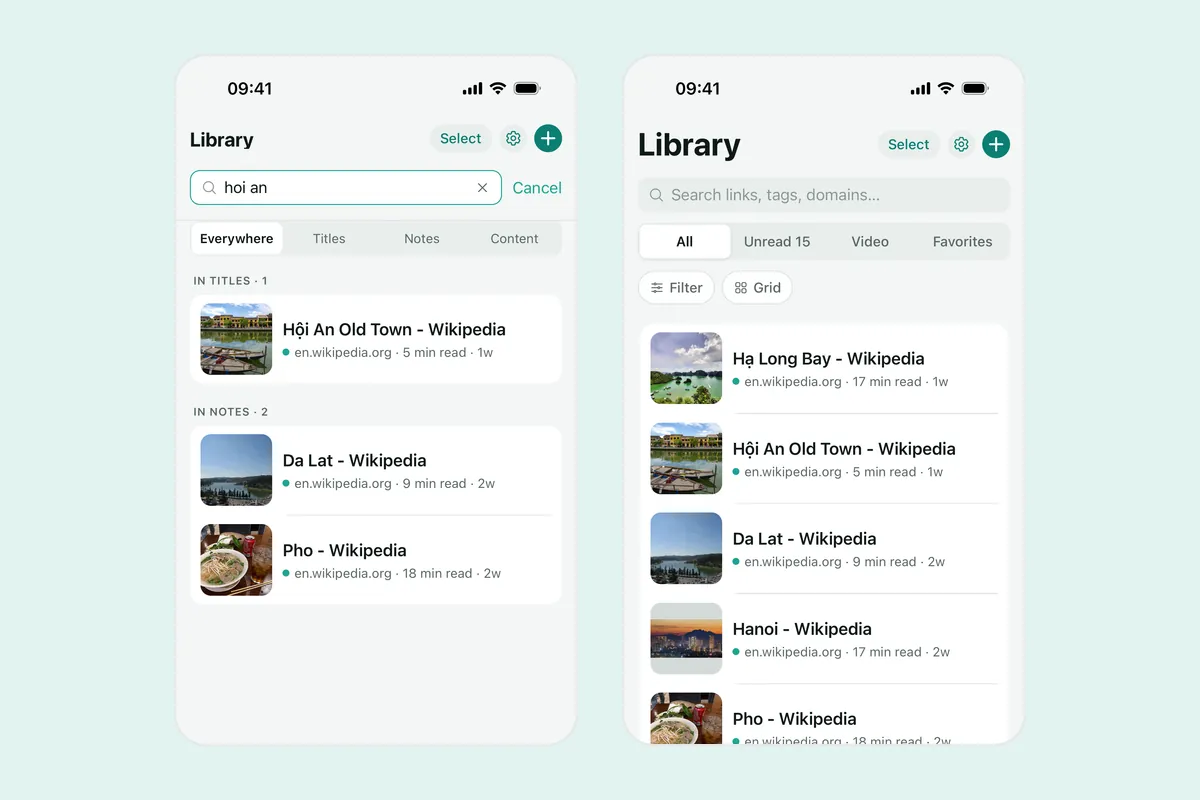
Spotlight matches the title and the site, which is quick for “where was that recipe?”. When you remember only a word from your own note or from the article text, open Linkeeper's own search instead; it looks through those as well.
Why doesn't a link I just saved show up in Spotlight?
- 1Open Linkeeper once. Links saved from the Share Sheet from another app are finished the next time Linkeeper is opened, which is when the title and image are fetched.
- 2Check that Show in Spotlight is on in Linkeeper's Settings, under Library.
- 3Check that the link is not hidden or archived. Those are left out on purpose.
- 4Check that Linkeeper is allowed to show in search in the iPhone's own Settings, under Search or Siri & Search, then wait a minute and try again.
- 5If it is older than your 3,000 newest links, find it with Linkeeper's own search instead.
To save links in the first place, see how to add an app to the iPhone share sheet.
Can Siri or Shortcuts save a link too?
Yes, for saving rather than searching. Linkeeper offers a Save link action for Shortcuts, so you can say “Save a link in Linkeeper” to Siri or add the action to a Shortcut. The link appears the next time you open the app. Only web addresses starting with http or https are accepted, and a link that is already waiting is not added twice.
Frequently asked questions
- How do I search saved links on iPhone from the Home Screen?
- Swipe down from the middle of the Home Screen to open Spotlight and type a word from the title or the site. Links appear only if the app that holds them shares its content with Spotlight; Linkeeper does by default.
- Does Spotlight search Safari bookmarks and the Reading List?
- It can, depending on Safari's search settings in the iPhone's Settings. If they do not appear, check those settings, or search inside Safari's own Bookmarks screen.
- Will my hidden links show up in Spotlight?
- Not from Linkeeper. Hidden and archived links are never shown in Spotlight, whatever the Show in Spotlight switch says.
- How do I turn Spotlight off for Linkeeper?
- Open Linkeeper, go to Settings, then Library, and turn off Show in Spotlight. Your links stay in the app and its own search.