
How to keep private links and bookmarks hidden on iPhone
Published · 6 min read
iPhone has two built-in ways to keep links away from someone who borrows your phone: Safari's Private Browsing can be locked behind Face ID, and a note in Notes can be locked with your passcode or Face ID. Regular Safari bookmarks and Reading List are never locked, so they are the wrong place for anything private.
This guide shows how to set up both, what each one leaves exposed, and the small habits — like the app switcher preview — that give private links away more often than people think.
How do I lock Safari's private tabs with Face ID?
Since iOS 17, Safari locks private windows when you leave them, and Face ID, Touch ID or your passcode unlocks them again. Check that it is on:
- 1Open Settings → Apps → Safari (on iOS 17, Settings → Safari).
- 2Under Privacy & Security, turn on Require Face ID to Unlock Private Browsing (Touch ID or Passcode on other models).
- 3In Safari, tap the tabs button, swipe to Private, and open your private tabs there.
Private tabs stay open between sessions, so a page you keep open in a locked private tab works like a hidden bookmark. The catch: closing the tab loses it, and private tabs are not organised in any way.
How do I keep links in a locked note?
A locked note is the most flexible built-in option: a list of links with your own comments, behind Face ID.
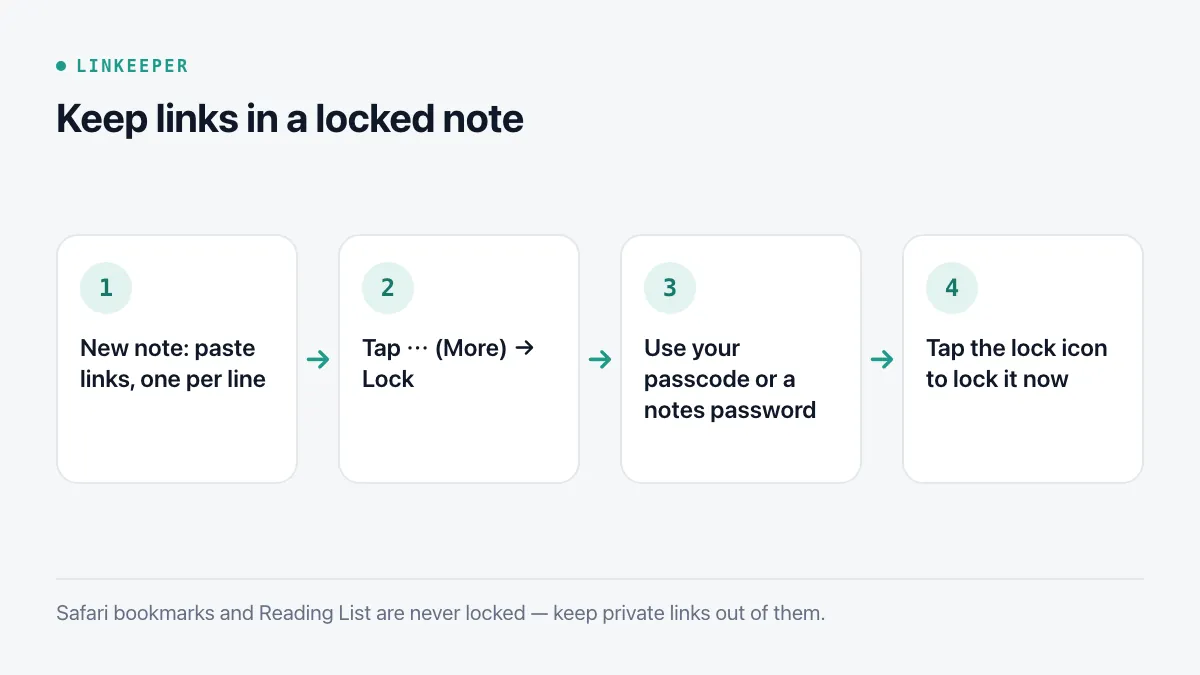
- 1Open Notes and create a note, for example “Private links”. Paste links into it, one per line, with a few words each.
- 2Tap ⋯ (More) at the top right and choose Lock.
- 3The first time, choose whether to use your iPhone passcode or a separate notes password, and allow Face ID.
- 4Tap the lock icon at the top to lock it now. It also locks itself after a short time or when you close Notes.
Some notes cannot be locked — for example shared notes with collaborators, and notes with certain attachments. Keep the private-links note plain text. The note's title stays visible in the list even when it is locked, so give it a dull name.
What does not keep links private?
- Safari bookmarks, Favorites and Reading List: visible to anyone who opens Safari, and synced to your other Apple devices.
- The Hidden album in Photos: it hides photos and videos, not links. A screenshot of a page is hidden, the page itself is not.
- Screen Time limits: they restrict what can be opened, they do not hide what you saved.
- Messages to yourself: whoever opens the chat sees them.
Which small leaks should I watch for?
Locking the content is not the whole job. These give private pages away more often than a missing lock:
- The app switcher shows the last screen of every app. Close a private page before switching apps, or use an app that covers its screen in the switcher.
- Safari's suggestions: typing in the address bar can suggest pages from history. Clear history for the pages in question in Settings → Apps → Safari → Clear History and Website Data, or browse them only in private tabs.
- Shared Apple ID or family devices: anything synced through iCloud — bookmarks, Reading List, unlocked notes — shows up on every device on that account.
- Widgets and notifications that preview recent items.
Where Linkeeper helps
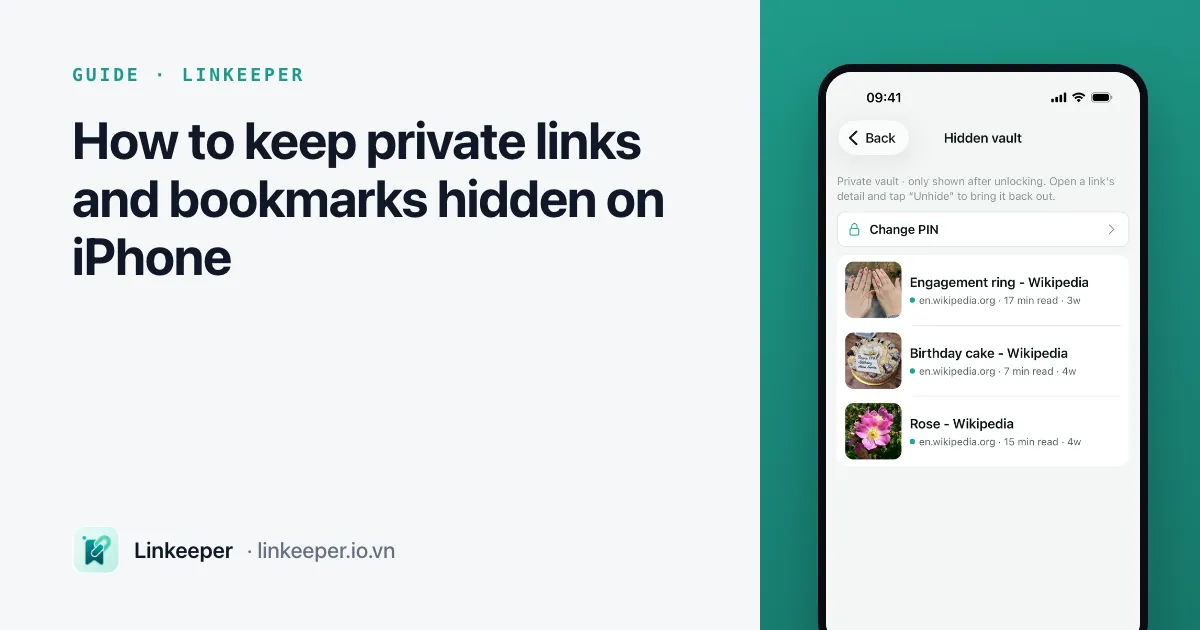
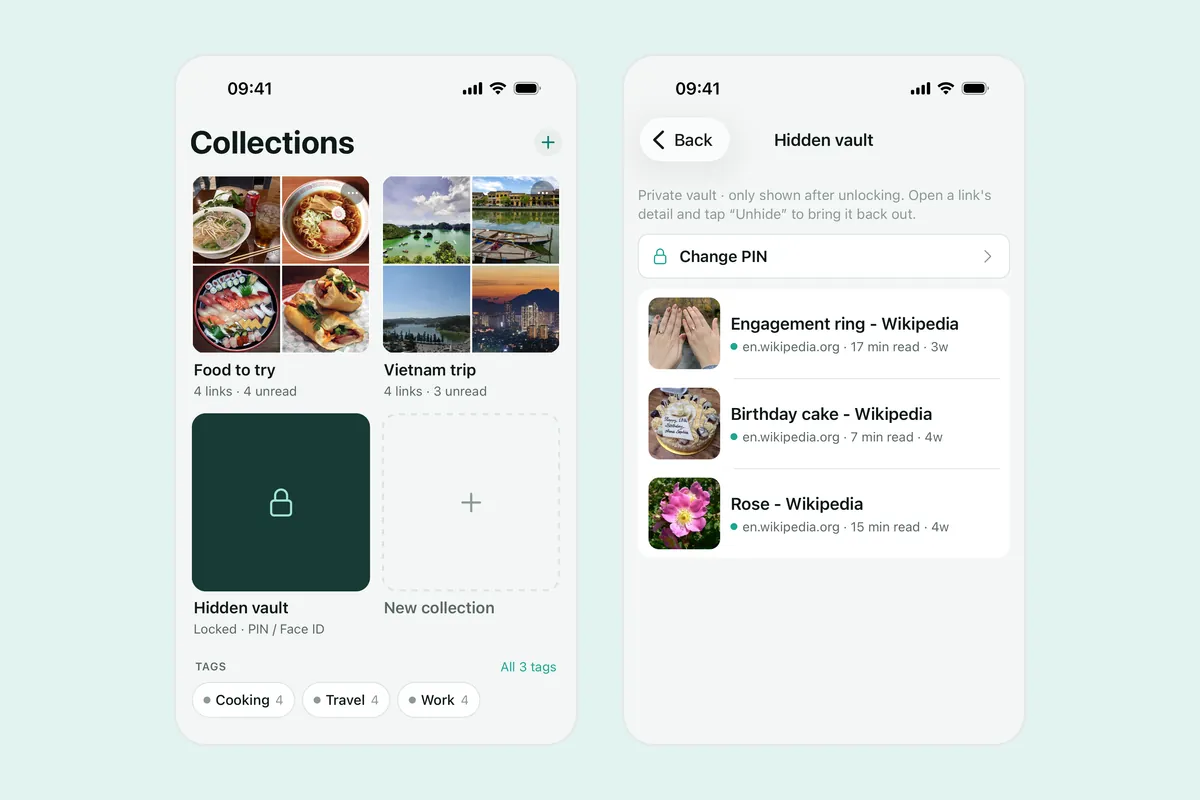
Linkeeper has a hidden vault for links you want saved and organised, but out of sight.
- Move a link to the vault and it leaves your library, search, the widget and reminders; it is shown only after you unlock the vault with your PIN, Face ID or Touch ID.
- A privacy cover hides the whole app the moment it leaves the foreground, so the app switcher never shows what you were looking at.
- The vault's entry point can itself be kept out of sight, so someone scrolling through the app does not see that there is a vault at all.
- Choose the PIN carefully: if you forget it, it cannot be recovered — resetting the vault deletes what is inside.
- The free vault holds 20 links; an optional rewarded ad adds room, and Linkeeper Unlimited removes the limit. If you use sync, hidden links sync too and stay hidden on your other devices.
More on how the vault and the rest of your data are stored is in the FAQ.