How to read articles on iPhone at night without eye strain
Published · 6 min read
To read articles on iPhone at night with less glare, turn on Dark Mode, lower the white point and brightness, and open the article in a reader view with a larger font and a dark or sepia background. Each of these is a setting you change once.
This guide goes through the built-in options in the order they help most, shows how to switch them on quickly when you are already in bed, and explains how Linkeeper's reader can keep an article readable in the dark. Menu names can differ slightly between iOS versions. If your eyes hurt often, talk to an eye-care professional, because settings only change how the screen looks.
Why is reading on a phone in the dark so uncomfortable?
In a dark room, a bright white page is the only light source, so it looks much harsher than the same page in daylight. Small text, a screen held close and long sessions make it worse. The fix is rarely one setting: it is a combination of a darker page, lower brightness and text you do not have to squint at.
How do I turn on Dark Mode on iPhone?
- 1Open Settings and tap Display & Brightness.
- 2Under Appearance, choose Dark.
- 3To switch automatically in the evening, turn on Automatic, tap Options and pick Sunset to Sunrise or a custom schedule.
Dark Mode changes the iPhone's own screens and apps that support it. Many websites ignore it and stay white, which is why the next steps matter when you read articles on the web.
How do I make the whole screen dimmer than the brightness slider allows?
Even at the lowest brightness a white page can feel bright. Reduce White Point softens the brightest colours across the whole screen, including websites that stay white.
- 1Open Settings → Accessibility → Display & Text Size.
- 2Turn on Reduce White Point and drag the slider until a white page looks comfortable.
- 3Optionally set Settings → Accessibility → Accessibility Shortcut to Reduce White Point, so a triple-click of the side button turns it on and off.
Night Shift (Settings → Display & Brightness → Night Shift) makes colours warmer after dark, and True Tone adapts the screen to the light around you. They change colour, not brightness, so use them together with the settings above, not instead of them.
How do I make the text easier to read in Safari?
Safari's Reader view strips menus and ads and lets you change the type. It is available on many article pages, but not on every page.
- 1Open the article in Safari and tap the aA button at the left of the address bar.
- 2Choose Show Reader if it is offered.
- 3Tap aA again to change the text size, the font and the background colour. Choose a dark or softer background than plain white.
If you read often, make the whole iPhone's text larger: Settings → Display & Brightness → Text Size, or add the Text Size control to Control Center. Larger text with a softer background is easier on the eyes than tiny black text on white.
What habits help besides settings?
- Hold the phone a little further away than usual, and rest it on something instead of holding it above your face.
- Pause every so often and look at something far away. The "20-20-20" rule (every 20 minutes, look at something 20 feet away for 20 seconds) is a common suggestion.
- Set Auto-Lock (Settings → Display & Brightness → Auto-Lock) so the screen does not stay on if you fall asleep reading.
- Pick short articles before sleep and keep long reads for the daytime.
These are comfort habits, not medical advice. If you have headaches, blurred vision or dry eyes, an eye-care professional can tell you more than any phone setting.
Where does Linkeeper help?
Linkeeper is an iPhone and iPad app that saves links from any app in one tap and keeps them in one searchable library to read later. When it can extract an article's text, it shows that article in its own reader, so you do not have to hunt for Safari's Reader settings for every page.
- The reader has a light, a sepia and a dark theme, and buttons to make the text smaller or larger.
- You can switch between a serif and a sans-serif font.
- Saved articles open from your library without a connection, and the reader remembers how far you scrolled.
- Tap Done when you finish and the article goes to your archive, so tomorrow's reading list is shorter.
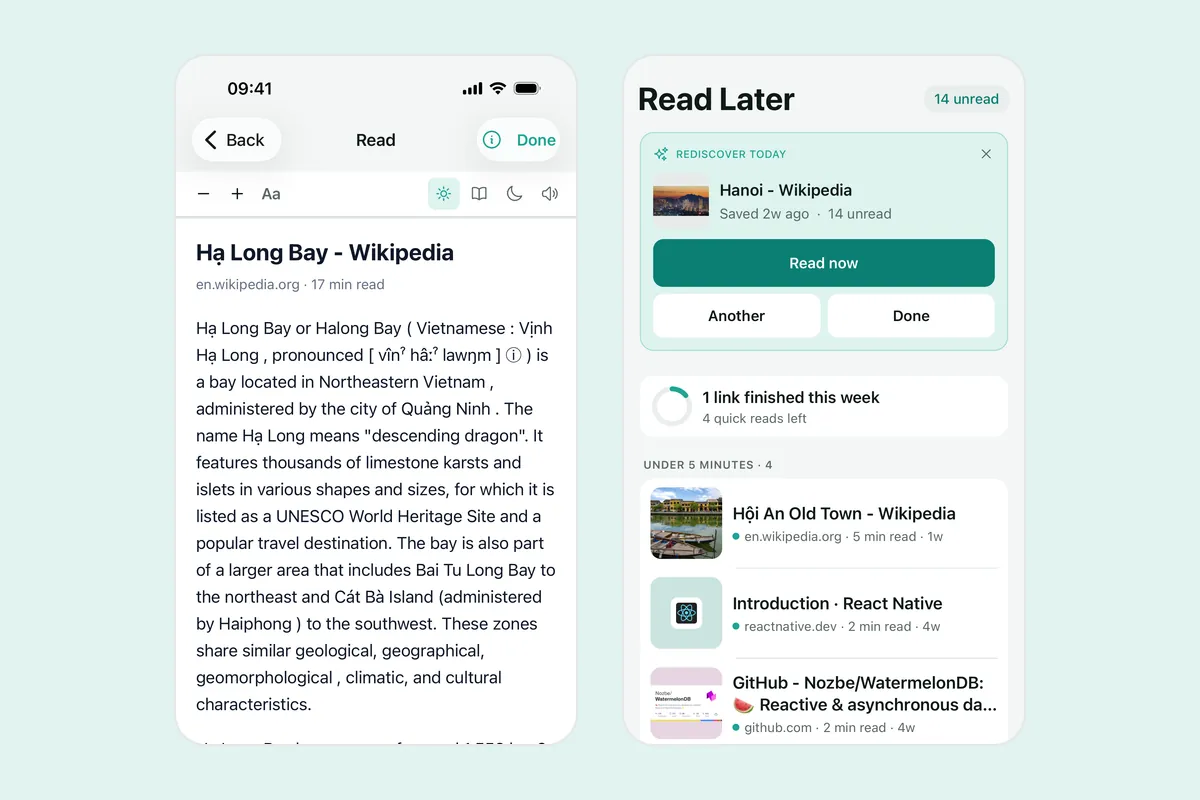
If a page has no extractable article text, such as a video or a page that needs you to be signed in, the reader tells you so and offers Open link, which opens the page in the in-app browser. For listening instead of reading, see how to make your iPhone read articles aloud. To read on a plane or in a tunnel, see how to save web pages to read offline.
Frequently asked questions
- How do I make my iPhone screen less bright than the lowest brightness?
- Turn on Reduce White Point in Settings → Accessibility → Display & Text Size and adjust the slider. It softens the brightest colours, including the white of websites.
- Does Dark Mode turn websites dark?
- Not by itself. Dark Mode changes the iPhone's own screens and apps that support it, and websites only follow it if they were built to. A reader view with a dark background is a reliable way to read a white page in the dark.
- What is the difference between Night Shift and Dark Mode?
- Dark Mode changes dark and light backgrounds in the interface. Night Shift only makes the screen colours warmer after dark. You can use both, together with a lower white point.
- Does Linkeeper have a dark theme for reading?
- Yes. Its reader has light, sepia and dark themes, plus text size and serif or sans-serif controls, for articles whose text it could extract.
- Will these settings fix tired eyes?
- They make the screen more comfortable, but they are not medical advice. If your eyes hurt often, see an eye-care professional.