
How to organize bookmarks: tags or folders?
Published · 5 min read
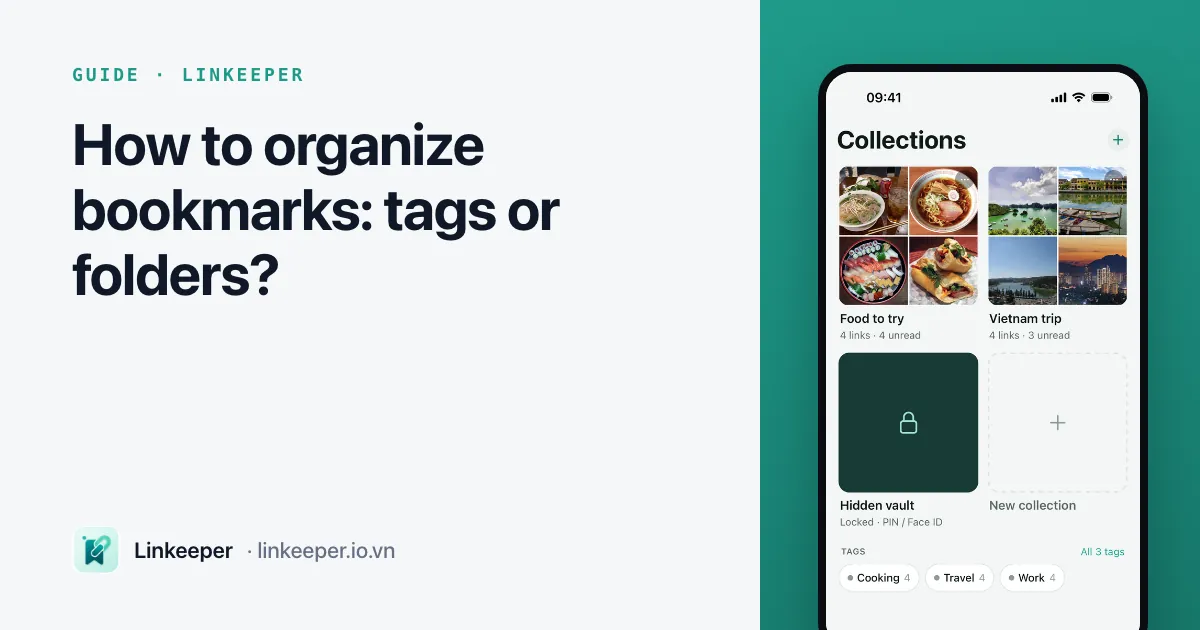
Use folders for a small number of broad, separate areas you browse, and tags for topics that overlap — most people end up happiest with a handful of folders plus a few tags, and search for everything else. What matters more than the choice is keeping the system small and reviewing it regularly.
This guide explains the difference, gives a simple system you can set up in any browser today, and shows how to keep it from turning back into a mess.
What is the difference between folders and tags?
A folder is a place: each bookmark sits in exactly one folder, and folders can contain other folders. A tag is a label: one bookmark can carry several tags, and there is no hierarchy between them.
- Folders are easy to browse. You open Travel, then Japan, and see everything there. They work best when your topics do not overlap much and your collection is not huge.
- Tags handle overlap. A recipe from a Japan trip blog can be both japan and recipes without saving it twice. They work best when you look things up by remembering roughly what they were about.
- Folders force a decision at save time (where does this go?); tags let you add a label or two and move on.
Most browsers only offer folders. That is fine — a few folders plus good page titles and search already go a long way.
Which should I use?
A practical rule: folders for what kind of thing it is or what you will do with it, tags (or search) for what it is about.
- Use folders if you have fewer than a few hundred bookmarks, you mostly browse rather than search, and your topics are clearly separate (Work, Home, Study).
- Use tags if the same link often belongs to two topics, you save a lot, or you usually find things by typing a word.
- Use both if your tool allows it: a few folders for status or purpose (To read, Reference, Projects) and tags for subjects.
How do I set up a simple system?
These steps work in Safari, Chrome, Edge or Firefox, and in most bookmark apps.
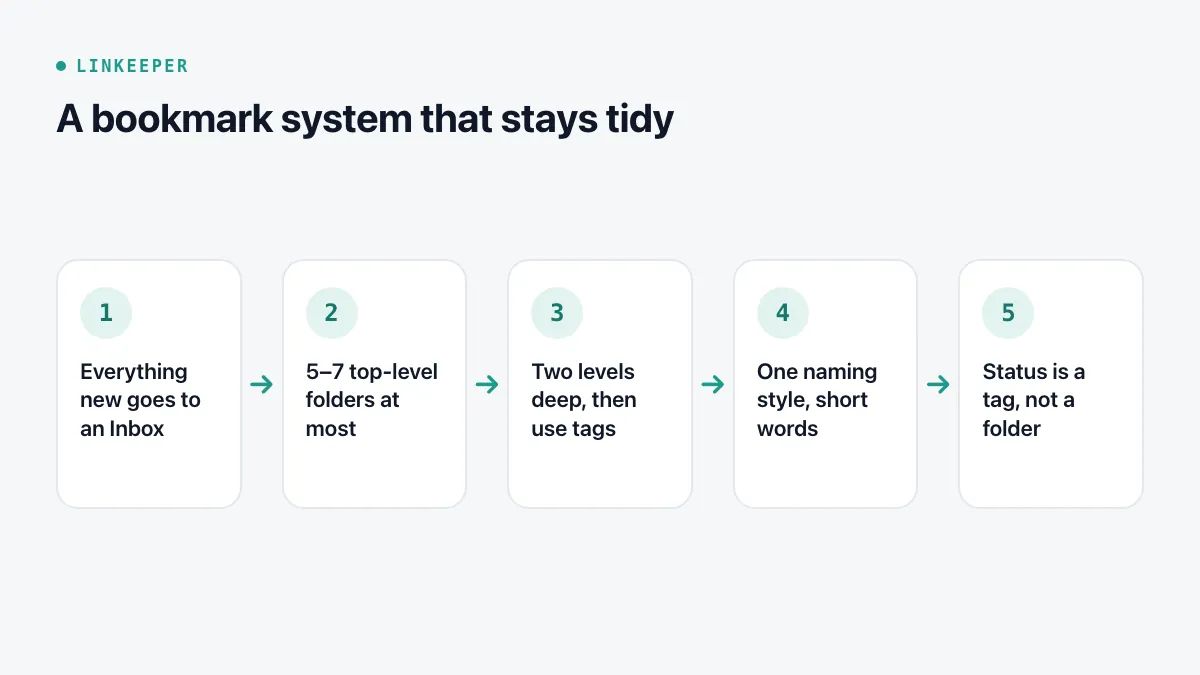
- 1Create an Inbox folder (or tag). Everything new goes there first, so saving never requires a decision.
- 2Create at most five to seven top-level folders for the areas of your life you actually look things up in. Fewer is better; you can always add one later.
- 3Keep folders at most two levels deep. If you need a third level, a tag or a better name usually solves it.
- 4Pick a naming style and stick to it: singular or plural, one language, short words. Tags like recipe, recipes and cooking are three ways to lose the same link.
- 5Rename bookmarks with vague titles when you file them. "Home" or "Untitled" tells you nothing a month later.
- 6Separate status from topic. To read, Reading now and Done are states, not subjects — keep them as their own folder or tag rather than mixing them into topic folders.
How do I keep it tidy over time?
Any system decays if nobody looks at it. A short, regular review keeps it working:
- Once a week, empty the Inbox: file what is worth keeping, delete the rest.
- Every few months, look for tags or folders you used only once or twice and merge them into a broader one.
- Open a few old links. Websites move and disappear; if a link is dead, search for its title to find the new address, or delete it.
- Delete duplicates when you spot them. Two copies of the same link in different folders is how a folder system starts to break.
- Be honest about the To read pile. If something has waited a year, it is fine to let it go — see how to actually read what you save.
Where Linkeeper helps
Linkeeper takes the tags-plus-search approach and does part of the filing for you, which matters most for links saved from your phone in a hurry.
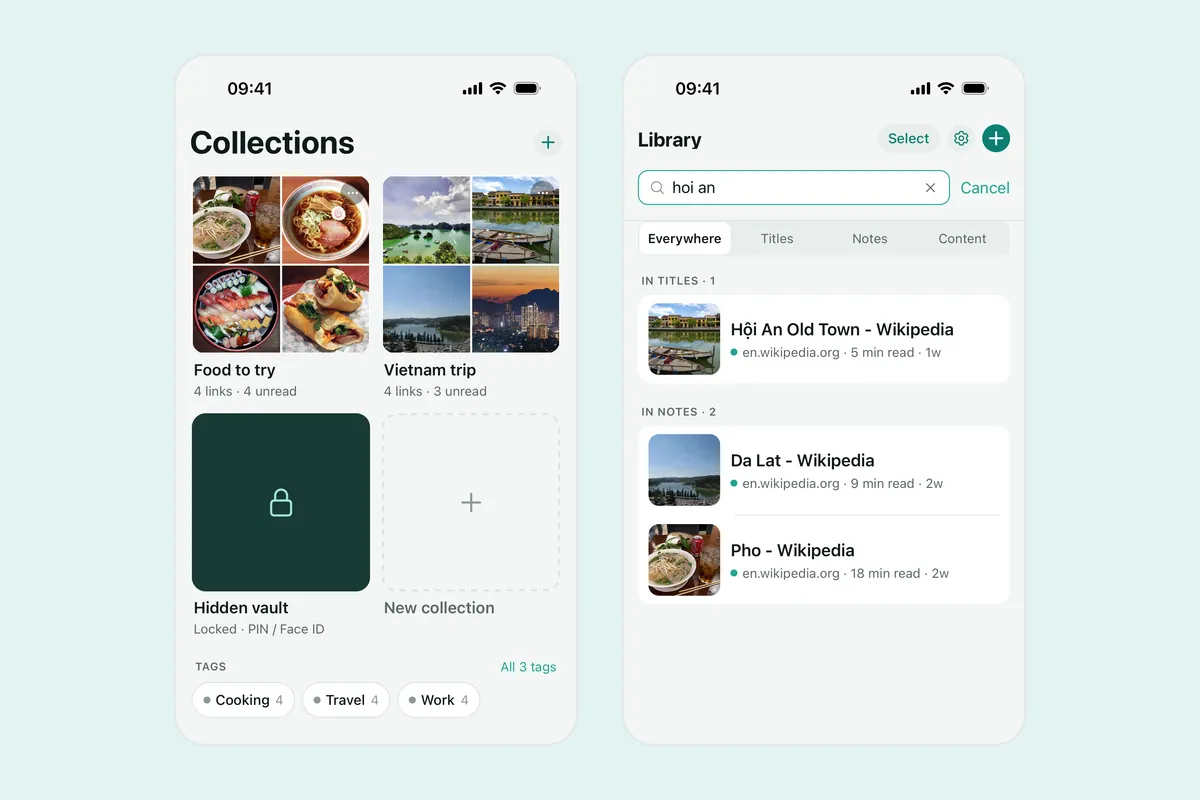
- Tags are detected automatically from the source (for example TikTok or YouTube) and from hashtags, and you can add your own; one link can carry several tags.
- Collections group links by project or trip, and you can share a collection as a read-only link that opens without an account.
- Search runs on the device and ignores Vietnamese diacritics, so typing "du lich" still finds "Du Lịch", even offline.
- Read/unread state and archive keep status separate from topic, as described above.
Existing bookmark files and Pocket exports can be imported on iOS — see what to do with a Pocket export. More details are in the FAQ.