
How to save Threads posts and find them again later
Published · 5 min read
To save a post on Threads, tap ⋯ on the post and choose Save; to see everything you saved, go to your profile, tap the menu (two lines) at the top and open Saved. Only you can see your saved posts, and the author is not told.
Threads changes its menus fairly often, so this guide also covers the fallbacks — your Likes list and copying a post's link — and what to do when a saved post is gone.
How do I save a post on Threads?
Saving works the same for text posts, photos and videos:
- 1Find the post in your feed, on a profile or in search.
- 2Tap ⋯ at the top right of the post.
- 3Choose Save. The option changes to Unsave, which is how you remove it later.
On threads.com in a browser, the same ⋯ menu has Save when you are signed in. If you do not see Save at all, update the app: saving was added after Threads launched, and older versions do not have it.
Where do I find my saved Threads posts?
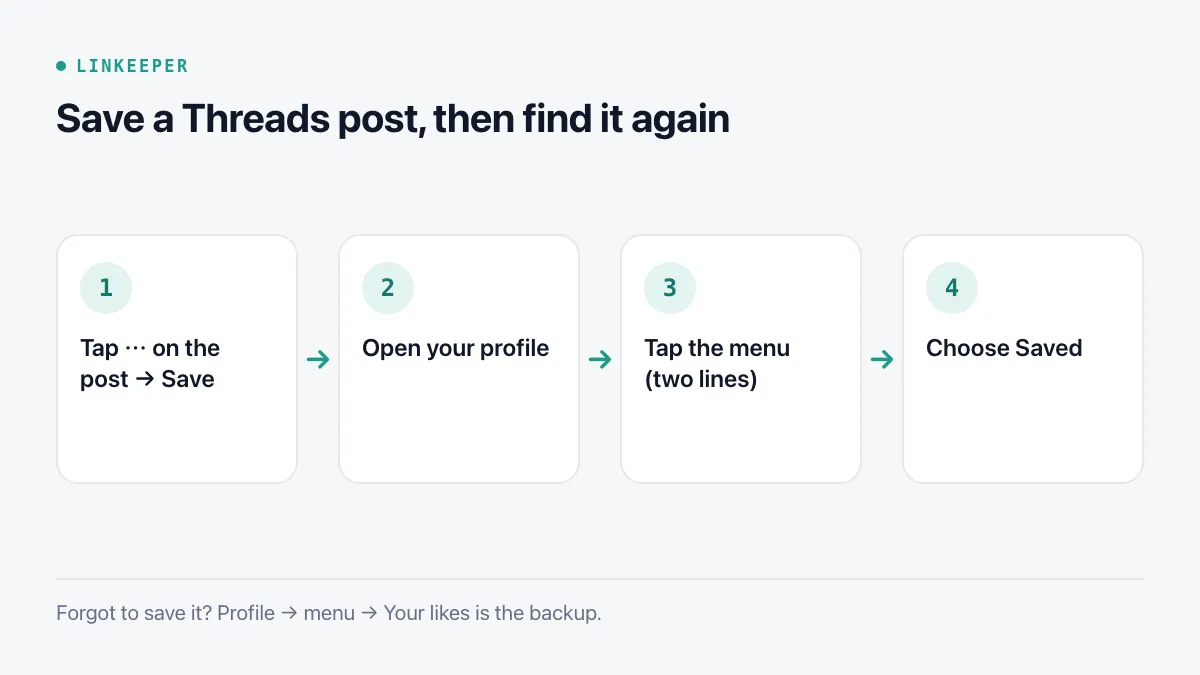
- 1Tap your profile icon at the bottom right.
- 2Tap the menu icon (two lines) at the top right.
- 3Choose Saved. Posts are listed with the most recently saved first.
On a computer, the menu icon is in the bottom left of threads.com; Saved is in the same list. Your saved posts are tied to your account, so they show up on every device where you are signed in.
Can I use Likes to find a post I forgot to save?
Yes, if you liked it. Threads keeps a list of the posts you liked: profile → menu (two lines) → Your likes. It is a useful backup, but it mixes posts you wanted to keep with posts you simply agreed with, and it is long if you like a lot. Unliking a post removes it from that list.
If you neither liked nor saved the post, the most reliable way back is remembering the author: open their profile and scroll, or search Threads for a distinctive word from the post.
Why did a saved post disappear?
Saved is a list of pointers to posts, not copies. A post leaves your list when:
- the author deleted it or deleted their account;
- the author made their profile private and you do not follow them;
- the author blocked you, or the post was removed for breaking the rules;
- you unsaved it by mistake from the ⋯ menu.
There is no way to recover a post the author deleted. If a post matters — a tip you will want to follow, a link inside it, a long explanation — keep what you need from it somewhere else, not just a bookmark inside Threads.
How do I keep a Threads link outside the app?
Every post has its own link, which you can keep anywhere:
- 1Tap the share icon (the paper plane) under the post.
- 2Choose Copy link. To send it straight to another app, tap Share via… (or More) to open the iOS share sheet.
- 3Paste it into a note or a link list, with a line about why you kept it.
If the post itself links to an article, open that article and save its link too. The article usually outlives the post that shared it.
Where Linkeeper helps
Threads' Saved list is one more tab next to the ones in Instagram, TikTok and Facebook. Linkeeper puts the links from all of them in one list.
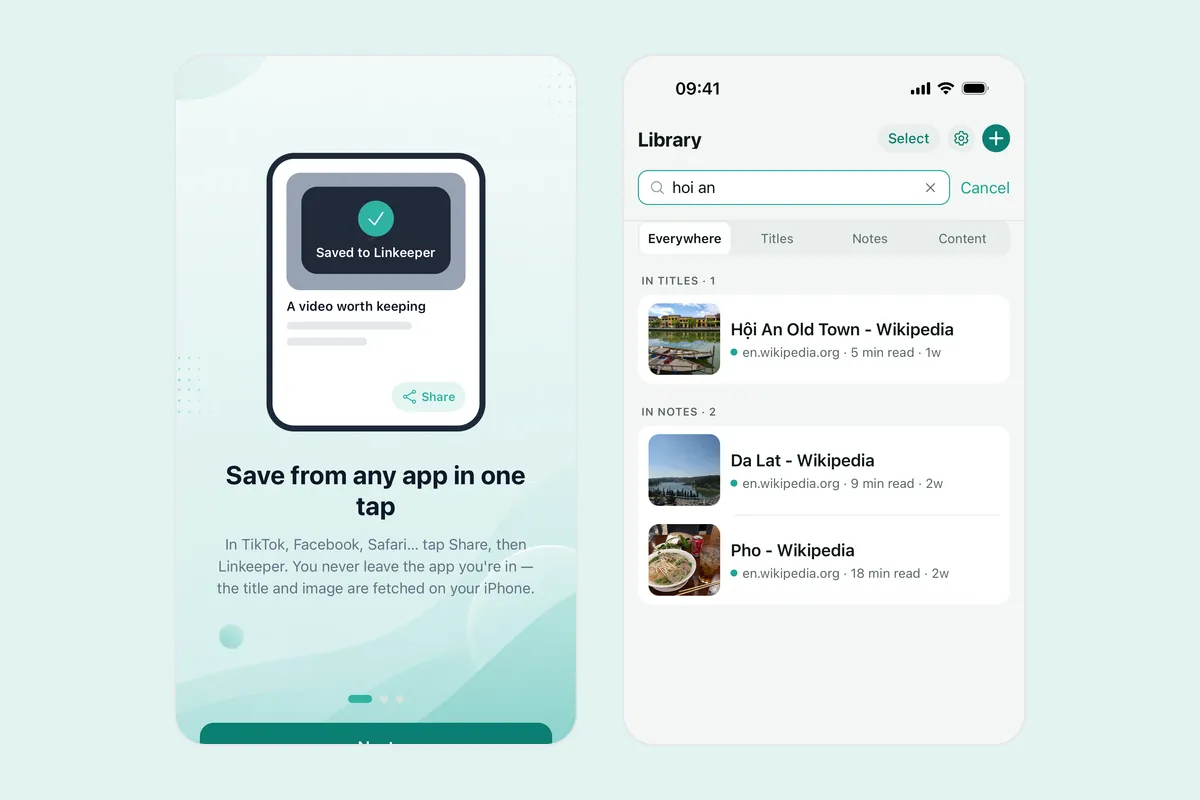
- Tap the paper plane on a post, open the iOS share sheet and choose Linkeeper; the link is saved without leaving Threads.
- Threads blocks most automatic previews on phones, so Linkeeper fetches the title and image through a server-side fallback; it can take a few seconds.
- Links are tagged by source and by hashtag automatically, and you can add a note with the part of the post you want to remember.
- Search runs on your iPhone, offline and without diacritics, across titles, notes and saved text.
The same approach works for Instagram's saved posts and Facebook's Saved.