
How to find a saved link on iPhone
Published · 7 min read
To find a saved link on iPhone, first work out where you saved it: Safari bookmarks, Reading List or History, a note, a chat or a link app. If it is in Linkeeper, type any word you remember into the search bar. It looks through titles, your notes and the saved article text, works offline and ignores accents.
Most of us remember a word, a site or roughly when we saw something, but not the exact title. This guide shows how to search each of the usual places on an iPhone, and how to set up your saves so that one search is enough next time.
Why is a saved link so hard to find again?
A link you saved is rarely in just one place. Over a few weeks the same kind of thing ends up scattered:
- Some in Safari bookmarks or Reading List, some in Notes, some sent to yourself in a chat.
- Titles are often generic (“Home”, “Watch this”) or in a language you don't remember, so searching by the title you think it had finds nothing.
- Social apps keep their own saved lists, and each has its own search.
- Nothing says why you saved it. A week later you remember the topic, not the page.
So the first step is to guess the right place, and the second is to search by what you do remember rather than by the exact title.
How do I find a link in Safari, Notes or a chat?
Check these built-in places in order. Each one has its own search, and none of them searches the others:
- 1Safari bookmarks and Reading List: tap the Bookmarks button (the open book), pick Bookmarks or Reading List, then pull the list down a little to show the search field. It searches titles and addresses.
- 2Safari History: in the same Bookmarks screen, open the History tab (the clock) and search it. If you only visited the page and never saved it, this is where it is.
- 3Notes: open the Notes list and use the search field. It finds text in notes, including links you pasted and the words around them.
- 4Chats: if someone sent it to you, open that chat and use its search, or look at the chat's shared links and media section if the app has one. How to find links you sent or received in Zalo and Messenger walks through it.
- 5Social apps: the video or post may be in the app's own saved list. The apps differ, so check TikTok, Instagram or Facebook separately.
How do I find a link in Linkeeper?
If you saved it with Linkeeper, everything is in the Library tab, and search is built for people who don't remember the exact title:
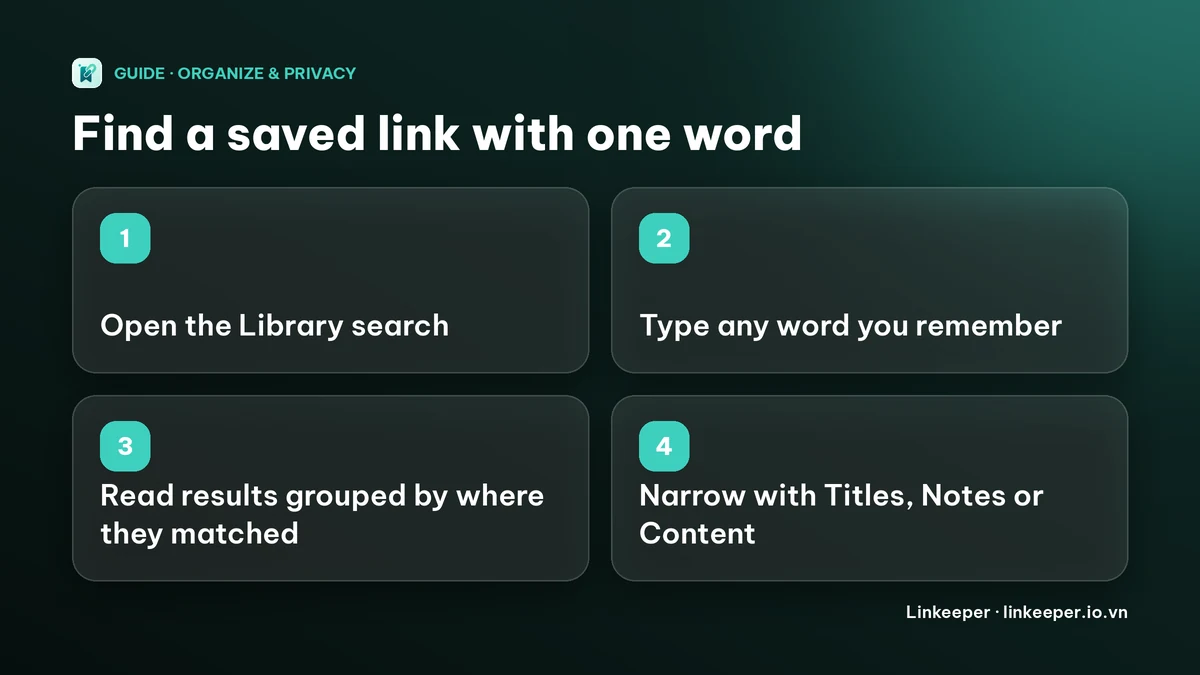
- 1Open Linkeeper and tap the search bar at the top of the Library tab. Under it you will see your recent searches and your most used tags.
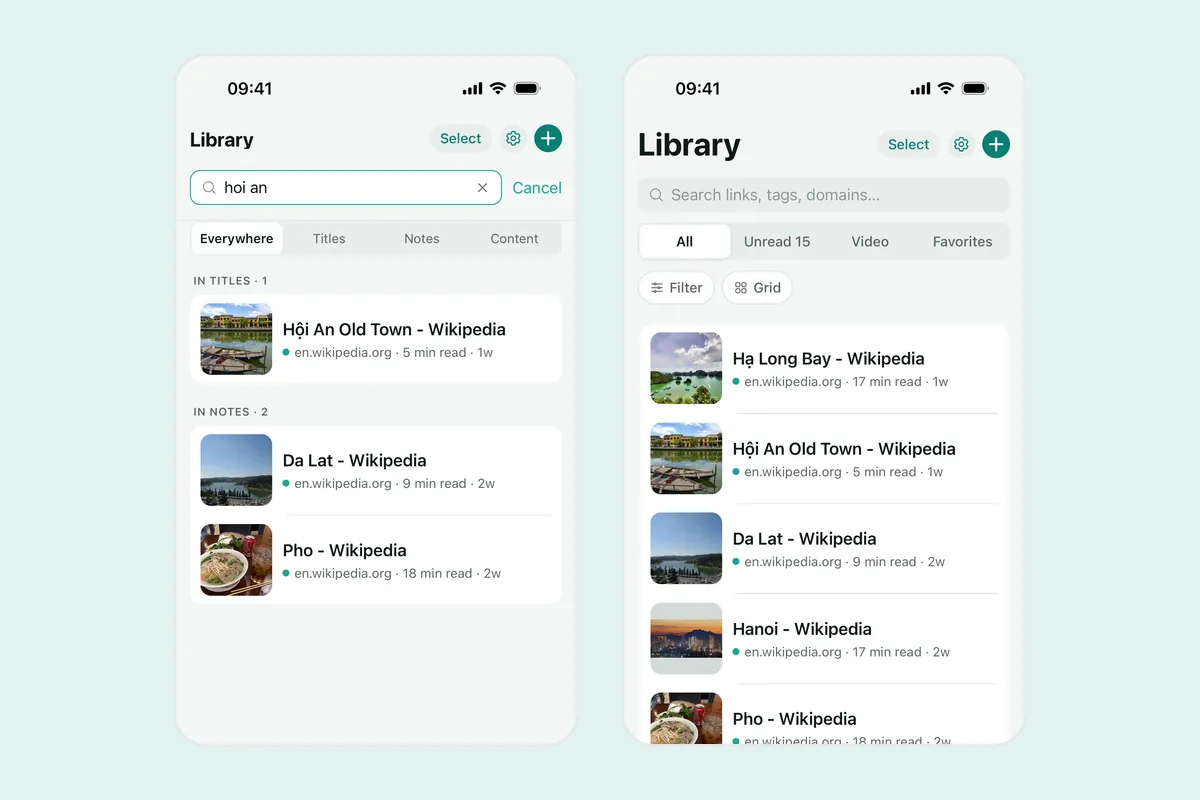
- 2Type a word you remember: part of the title, the site, a hashtag, a word from your own note or a word from the article. You can type without accents: “du lich” finds “Du Lịch”.
- 3Read the results. They are grouped by where the word was found: in titles, in notes, in the text of the saved article, and other matches, with a count for each group.
- 4Too many results? Use the switch under the search bar to look only in Titles, Notes or Content instead of Everywhere.
- 5Remember a tag rather than a word? Type # and the first letters of the tag, then pick it to filter the Library by that tag.
Search runs on your iPhone, so it works in airplane mode and results appear as you type.
What if I don't remember any word from the page?
Then browse instead of searching. The Library has ways to narrow things down:
- Views at the top: All, Unread, Video and Favorites. If you remember it was a video, or that you starred it, start there.
- The Filter button narrows by source (for example TikTok or YouTube), by tags and by collection, and changes the sort between newest, oldest, name and website.
- Group by tag shows your links under their tags, which is handy when you remember the topic.
- The “Rediscover today” card in the Read Later tab suggests an unread link from your list, which is a good way to bump into something you forgot you saved.
Why can't Linkeeper find a link I know I saved?
- It is archived. Search looks through your active Library. Archived links are listed under Filter → Show archived only.
- It is in the hidden vault. Hidden links never appear in the normal Library or in search; open the vault with your PIN or Face ID. How to keep private links hidden explains it.
- The word is not where you think. Try the Everywhere scope, a different word, or part of the site's name.
- The page text could not be read. Article text is only searchable when the page provided it. A video or a page that blocks apps is still found by its title, your note and tags.
How do I save links so they are easy to find later?
Finding is mostly decided at saving time. Three small habits make the next search a one-word job:
- 1Save from the share sheet instead of screenshots or pasted text, so the link, title and thumbnail are kept together. Adding an app to the share sheet takes a minute.
- 2Add a note for anything you might not recognise later: why you saved it, a price, a name. Notes are searched too.
- 3Use a few tags or collections for topics you return to. Tags or folders: how to organize bookmarks helps you choose.
Notes in Apple Notes work for a short list; once it grows, searching one place instead of several is the part that saves time. Saving links in Apple Notes vs Linkeeper compares them honestly.
Frequently asked questions
- How do I find a link I opened in Safari but never saved?
- Open the Bookmarks button, choose the History tab (the clock) and search or scroll by day. History only goes back as far as it is kept, and a page opened in a private tab is not recorded.
- Does Linkeeper search inside the saved article, not only the title?
- Yes. Search covers titles, descriptions, websites, your notes, tags and the article text Linkeeper extracted when it saved the page. Results show whether a word matched in a title, a note or the text.
- Can I search Linkeeper without internet?
- Yes. Links, notes and tags are stored on your iPhone and search runs there, so it works in airplane mode.
- Do I need an account to search my saved links?
- No. Saving, searching and organizing work without signing in. Signing in with Apple or Google is optional and is only for syncing between devices.