
How to export your article highlights and notes from iPhone to Notion or Obsidian
Published · 5 min read
To get highlights and notes out of web articles on iPhone, copy each quote together with its page link into a note, or use a read-later app that can export them. In Linkeeper, an iPhone and iPad app that saves links from any app in one tap, Settings → Backup & restore → Export notes & highlights writes every note and highlight into one Markdown file that you send to Files, Notion, Obsidian or any app in the share sheet.
Below are the three ways to do it, what the Linkeeper file contains, and the limits worth knowing. Menu names change between iOS versions, so look for the same idea on your screen.
Why can’t I just export highlights from Safari?
Safari on iPhone has no highlighter for live web pages, so there is nothing to export. Reading List keeps a list of pages, not the passages you cared about. Anything you want to keep from an article has to be copied out or marked in an app that stores it.
That is why most people end up with screenshots of highlighted text. They are hard to search and lose the link to the source. A better rule: every quote you keep should travel with the page address it came from.
What are the three ways to get quotes out?
- By hand: select the passage, tap Copy, open your notes app, paste it, then add the page link below it. Works anywhere and costs nothing, but you must do it every time.
- A screenshot with Markup: quick, but the text is not searchable and the link is gone (see how to highlight web pages on iPhone).
- A read-later app with highlights and export: you highlight while reading, and one action collects everything with its source.
How do I export highlights and notes from Linkeeper?
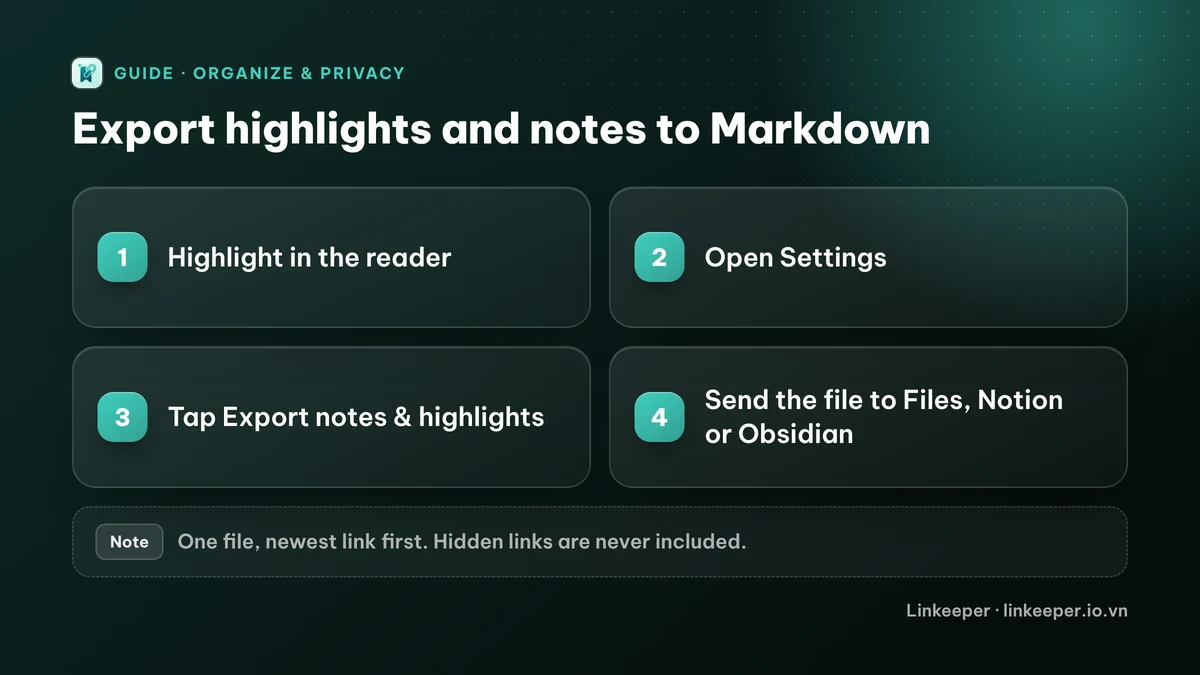
First highlight in the reader: open a saved link in the reader, select text and choose Highlight, then add an optional note for that highlight. You can also write a note on the link itself (see how to add a note to a saved link).
- 1Open Linkeeper and go to Settings.
- 2In the Backup & restore section, tap Export notes & highlights.
- 3In the share sheet that opens, pick where the file goes: Save to Files, or an app such as Notion or Obsidian if it is installed.
If you have no notes or highlights yet, Linkeeper shows a short message instead of an empty file.
What is inside the exported file?
- One Markdown file named linkeeper-notes.md, with a title and the export date at the top.
- One heading per link, as a clickable link using the page title (or the site name, or the address if there is no title).
- Under it, the note you wrote on that link, then each highlight as a quote, followed by that highlight's own note if you added one.
- Newest saved link first. Links with neither a note nor a highlight are left out.
- Links in your hidden vault are never included.
Markdown is plain text, so the file opens in any notes app and keeps its headings, quotes and links when you paste it in.
Where Linkeeper helps, and what it does not do
- Highlights and notes sit with the saved link, so you can search them later, even offline.
- Settings → Highlights lists every highlight across your library and jumps back to the spot in the article.
- The export is a file you send once. It is not a live sync to Notion or Obsidian, so export again after you add more, and check for duplicates if you paste both files into the same note.
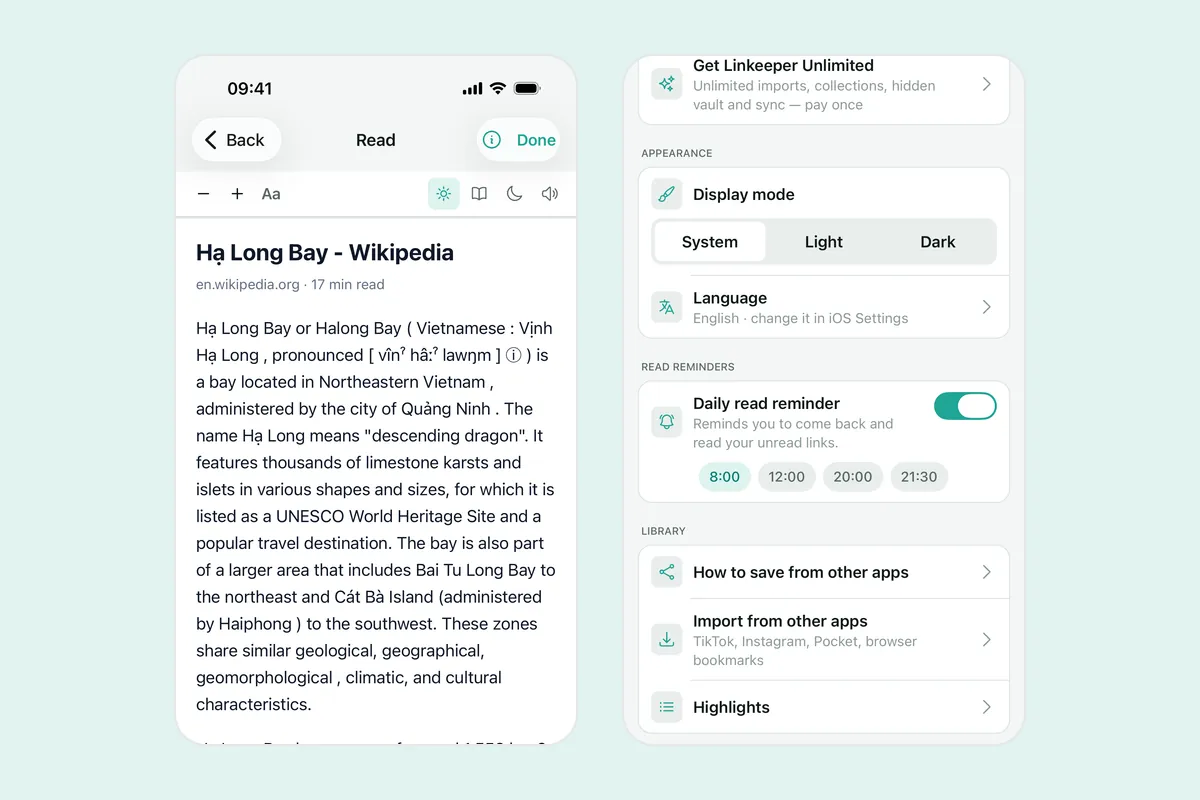
Highlighting works in Linkeeper’s reader, so a page that will not open in the reader cannot be highlighted there. Linkeeper cannot export highlights you made in other apps. Add it to your share sheet once if it is not listed (how to add an app to the share sheet).
Frequently asked questions
- Can I export Safari highlights on iPhone?
- No. Safari has no highlighter for live web pages, so there is nothing to export. Copy quotes with their link into a note, or use an app that stores highlights.
- How do I export highlights from Linkeeper?
- Open Settings, go to Backup & restore and tap Export notes & highlights. Then choose Files, Notion, Obsidian or another app from the share sheet.
- What format is the export?
- A single Markdown file named linkeeper-notes.md with each link as a heading, your note, and each highlight as a quote.
- Are hidden links included in the export?
- No. Links in the hidden vault are never exported.
- Does Linkeeper sync highlights to Notion or Obsidian automatically?
- No. It creates a file when you ask for it. Export again to include new highlights.