How to save a link with the Action Button or Back Tap on iPhone
Published · 5 min read
On iPhone you can run a Shortcut with the Action Button, by tapping the back of the phone, or by asking Siri. That makes it possible to save a link without opening the share sheet at all: copy the link, press the button, done.
This guide builds that Shortcut step by step. It needs an app that offers a “save link” action; we use Linkeeper as the example. Menu names are from recent iOS versions and can differ slightly on yours.
What can the Action Button and Back Tap actually do?
Neither one can read the web page you are looking at. They only start a Shortcut, and the Shortcut can use what is on the clipboard. So the routine is always two steps: copy the link first (or share it), then trigger the Shortcut.
- Action Button: only on iPhones that have one (iPhone 15 Pro and later). In Settings, choose Action Button, swipe to Shortcut, and pick the Shortcut.
- Back Tap: available on iPhone 8 and later. In Settings, open Accessibility, then Touch, then Back Tap, choose Double Tap or Triple Tap, and pick the Shortcut from the list.
- Siri: say the name of the Shortcut. Apps can also add their own phrases; see the last section.
How do I build a Shortcut that saves the copied link?
You need an app whose Shortcuts action saves a link. Linkeeper is an iPhone and iPad app that saves links from any app in one tap and keeps them in one organized, searchable library to read later. It offers a Save link action, so the Shortcut is only two actions long.
- 1Install Linkeeper and open it once, so iOS lists its actions in Shortcuts.
- 2Open the Shortcuts app, tap the plus button to make a new Shortcut, and tap Add Action.
- 3Search for Get Clipboard and add it.
- 4Search for Linkeeper and add its Save link action.
- 5Check that the Link field of Save link is set to Clipboard. If it is empty, tap it and choose Clipboard from the variables.
- 6Tap the name at the top, call it something short such as Save link, and tap Done.
Try it once: copy a link from any app, open the Shortcut, and tap it. You should see the confirmation “Saved to Linkeeper”.
How do I run it from the Action Button, Back Tap or Siri?
- 1Action Button: open Settings, tap Action Button, swipe to Shortcut, tap Choose a Shortcut, and pick Save link.
- 2Back Tap: open Settings, then Accessibility, then Touch, then Back Tap. Pick Double Tap or Triple Tap and choose Save link under Shortcuts.
- 3Siri: say “Save link” (the name you gave the Shortcut).
- 4Home Screen: in the Shortcuts app you can also add the Shortcut to the Home Screen or as a widget.
From then on the routine is: copy a link, press the Action Button or tap the back of the phone. The Shortcut runs without opening the app.
If iOS asks whether Shortcuts may paste from another app, that is the normal clipboard prompt; see how to stop the “Allow Paste” pop-up.
What happens to the link after it is saved?
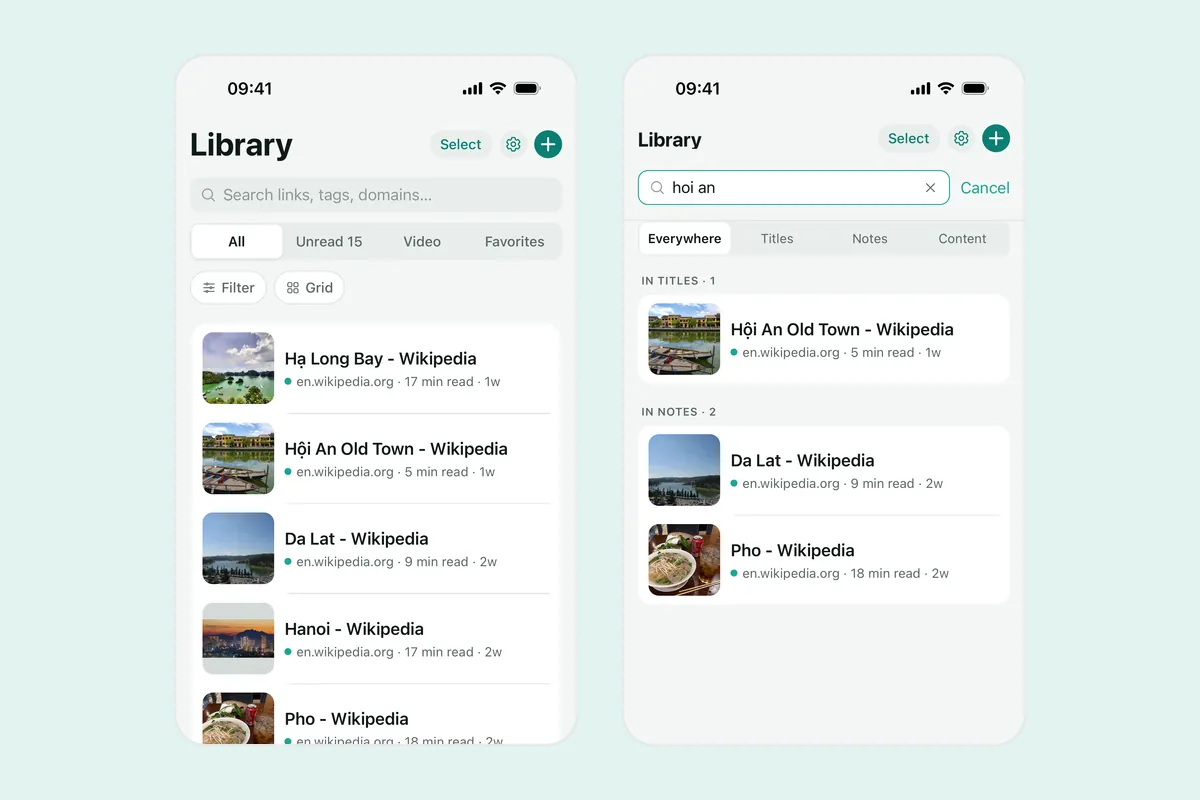
The Save link action does not open Linkeeper. It puts the link in a waiting list, and the app saves it, with its title and image, the next time you open it. That is why a link can be missing from the Library until you open the app once.
- Only web addresses starting with http or https are accepted. Anything else gives the message “That doesn't look like a web link.”
- If the same link is already waiting, you see “Already waiting in Linkeeper” and it is not added twice.
- The link is saved the same way as one shared from the share sheet, so it ends up in the same library and can be searched, tagged and put in collections.
Why did nothing happen, or the wrong thing?
- The clipboard held text, not a link: copy the link again. A page title or a sentence is not a web address.
- The Link field is empty: open the Shortcut and set it to Clipboard.
- The link is not in the Library yet: open Linkeeper once so it can finish saving it.
- The Action Button does not list Shortcut: your iPhone may not have an Action Button. Use Back Tap or Siri instead.
- Saving a link you have not copied: the Shortcut cannot see the open page. Use the Share button instead; see how to add an app to the iPhone share sheet.
If you often copy links and lose them, how to find a link you copied on iPhone explains why iOS keeps no clipboard history.
Can I just say “Save a link in Linkeeper” to Siri?
Yes. Linkeeper adds Siri phrases for its Save link action, such as “Save a link in Linkeeper”, “Save to Linkeeper” and “Add a link to Linkeeper”. Siri then asks which link you want to save. Your own Shortcut is still the easier way when the link is already on the clipboard, because you do not have to say or type the address.
Frequently asked questions
- How do I save a link with the Action Button on iPhone?
- Make a Shortcut with two actions, Get Clipboard and your app's save-link action. Then open Settings, tap Action Button, choose Shortcut and pick it. Copy a link, press the button. Only iPhones with an Action Button (iPhone 15 Pro and later) have this.
- Can I use Back Tap to save a link?
- Yes. Under Settings, Accessibility, Touch, Back Tap, choose Double Tap or Triple Tap and pick your Shortcut. Back Tap is available on iPhone 8 and later.
- Does the Shortcut save the page I am looking at?
- No. The Action Button and Back Tap cannot read the open page. Copy the link first, or use the Share button.
- Why is the link not in Linkeeper right away?
- The Save link action does not open the app. The app saves the waiting link, with its title and image, the next time you open it.