Safari Bookmarks vs Favorites vs Reading List on iPhone: what is the difference?
Published · 5 min read
On iPhone, a Bookmark is a page you want to keep, a Favorite is a bookmark you want one tap away on the Start Page, and Reading List is a queue of pages to read soon, which can be saved for offline reading. Favorites are not a separate store: they are a special bookmarks folder.
All three live in Safari, so they only hold pages you open in Safari. This guide explains when to use each, how to add and move items, and what to do with links that come from other apps. Menu names can differ slightly between iOS versions.
What is the difference at a glance?
| Bookmarks | Favorites | Reading List | |
|---|---|---|---|
| Best for | Pages you want to keep and sort | Sites you open all the time | Articles you plan to read soon |
| How you add it | Share → Add Bookmark | Share → Add Bookmark, then choose Favorites as the location | Share → Add to Reading List |
| Where you see it | Bookmarks tab in Safari | Start Page and the bookmarks view | Reading List tab (glasses icon) |
| Structure | Folders | One folder, shown first | One flat list, read and unread |
| Offline copy | No | No | Optional, with Automatically Save Offline |
With Safari switched on in iCloud, all three sync to your other Apple devices. A deletion syncs just as quickly, so see what to do when bookmarks disappear.
When should I use Bookmarks?
Use Bookmarks for pages you will want again in a month or a year: a reference page, a recipe, a login page, a guide you keep checking. Bookmarks can sit in folders, so you can group them by topic.
- 1Open the page in Safari and tap the Share button.
- 2Tap Add Bookmark.
- 3Edit the name if the page title is unclear, choose a folder under Location, and tap Save.
- 4To find it later, tap the bookmarks icon (the open book) in Safari and open the folder.
Folders work well for a dozen topics and badly for hundreds of links, because a page can only be in one folder. Tags or folders? explains where that limit starts to hurt.
When should I use Favorites?
Favorites are for the few sites you open every day: your email, a news site, a banking page. Safari shows them on the Start Page, so a new tab is one tap away from them. Keep this folder short, or it stops being a shortcut.
- Add one the same way as a bookmark: Share → Add Bookmark, then set Location to Favorites.
- Move an existing bookmark: open the bookmarks view, tap Edit, tap the bookmark and change its location.
- Favorites in Safari are not the same as a star or Favorites filter inside other apps. Each app has its own meaning.
When should I use Reading List?
Use Reading List for an article you want to read soon but not now. It is a queue, not an archive: you add pages, read them, and clear them.
- 1Open the page in Safari, tap Share, then tap Add to Reading List.
- 2Turn on offline copies once in Settings → Apps → Safari → Automatically Save Offline, if you want to read without a connection.
- 3Read from the Reading List tab (the glasses icon) in Safari's bookmarks view. Show Unread hides what you finished.
- 4Swipe a row to mark it as read or to delete it, so the list only holds what is waiting.
If offline reading does not work as you expect, see how to save web pages to read offline on iPhone.
Which one should I choose for a link?
- Will I open it every day? Favorites.
- Will I want to find it again later, and does it fit one folder? Bookmarks.
- Do I just need to read it in the next days? Reading List.
- Did it come from TikTok, YouTube, a chat or another app? None of the three works directly: open it in Safari first, or save it somewhere that accepts links from any app.
What if the link is not in Safari?
Bookmarks, Favorites and Reading List only take pages from Safari. A post in a social app or a link in a chat has to be opened in Safari before you can add it, which is easy to forget.
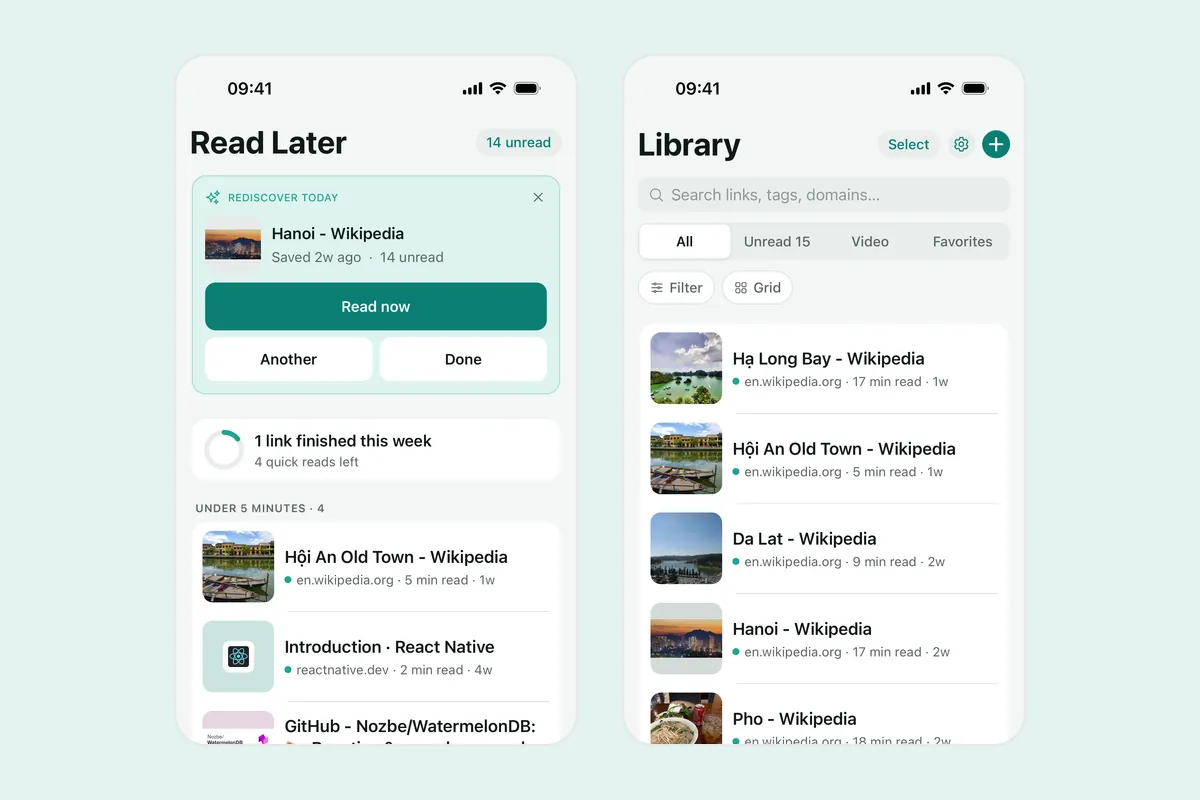
Linkeeper is an iPhone and iPad app that saves links from any app in one tap and keeps them in one organized, searchable library. It does not replace Safari's lists and does not read them; it covers the links Safari cannot hold.
- Choose Linkeeper in the share sheet of the app you are in, and the link is saved without leaving it. If the app is missing from the row, add it to the share sheet.
- Tags and collections let one link belong to several groups, which a bookmark folder cannot do.
- The Unread view works like a reading queue, and Favorites marks the links you use most.
- Search covers titles and your notes, and works offline. Archive a link when you are done with it; it leaves the list but stays searchable.
To bring in existing Safari bookmarks, export them on a Mac and import the file, as described in how to move bookmarks between browsers and iPhone. For a longer comparison, see Linkeeper vs Safari Reading List.
Frequently asked questions
- What is the difference between bookmarks and favorites in Safari on iPhone?
- Favorites are a special bookmarks folder that Safari shows on the Start Page for one-tap access. Other bookmarks can go in any folder and are reached through the bookmarks view.
- What is the difference between a bookmark and Reading List?
- A bookmark keeps a page in a folder for later reference. Reading List is a queue of pages to read, with read and unread states and optional offline copies.
- Does Reading List work offline?
- It can, if Automatically Save Offline is turned on in Settings → Apps → Safari. The setting is per device.
- Can I save links from other apps to Safari bookmarks?
- Not directly. You need to open the page in Safari first. An app that appears in the share sheet, such as Linkeeper, can save links from any app.
- Does Linkeeper need an account?
- No. Links, notes, tags and collections are stored on your iPhone first. Signing in with Apple or Google is optional and only used to sync your library between devices.