
What to do with your Pocket export file (part_000000.csv)
Published · 6 min read
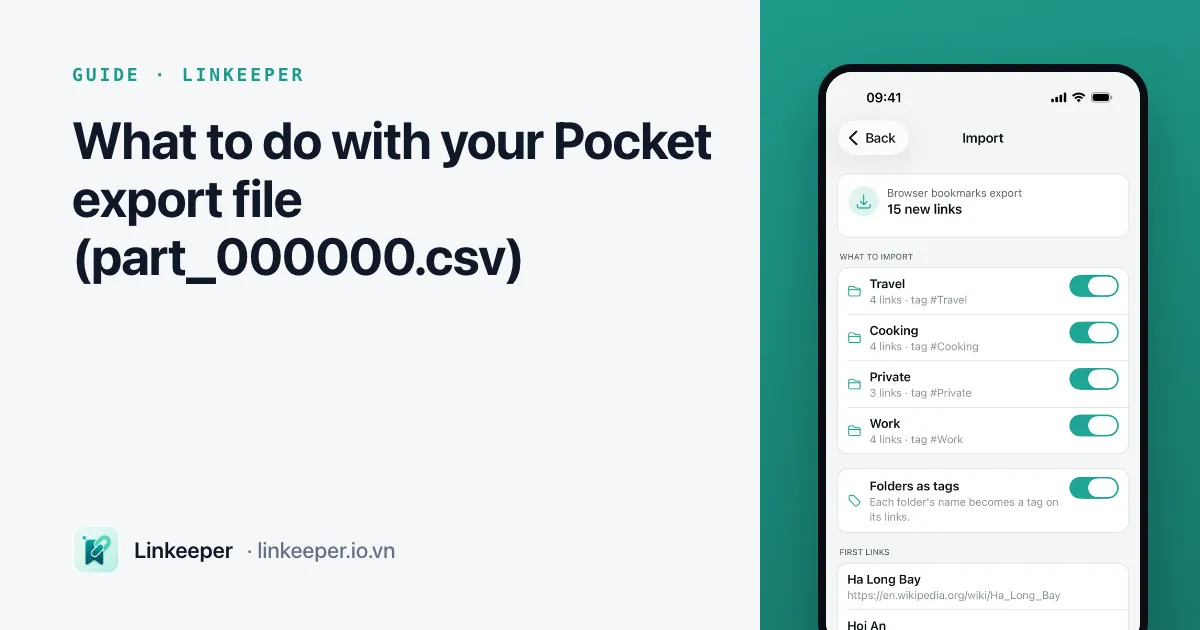
Mozilla shut down Pocket in 2025 and gave users a limited window to download their saves. If you exported in time, you have a ZIP file somewhere in your email or Downloads folder. If you never opened it, it is easy to forget it exists — and it may be the only copy of years of reading.
This guide explains what is inside the file, how to look through it without any special software, and how to turn it into a list you will actually come back to.
Find the file and keep a safe copy
Pocket sent the export as a download link by email. Search your inbox for "Pocket" and "export", or look in your Downloads folder for a ZIP file from around the time you requested it.
- 1Unzip the archive. Inside is a file usually named part_000000.csv. Very large libraries were split into several files: part_000001.csv, part_000002.csv and so on.
- 2Copy the original ZIP to a second place you trust — iCloud Drive, another cloud drive or an external disk. Work on copies from now on.
- 3If what you have is a single HTML file instead of a CSV, that is the older export format. It holds the same links as a page of bookmarks, and most tools that accept bookmark files can read it.
What is inside the CSV
A CSV is a plain text table, one saved item per row. The Pocket export has five columns:
- title — the page title Pocket stored when you saved it.
- url — the original address. This is the part that matters most.
- time_added — when you saved it, as a Unix timestamp (seconds since 1 January 1970).
- tags — your Pocket tags, separated by a vertical bar, for example recipes|weekend.
- status — unread or archive.
Highlights, notes and the article text itself were not part of this export. What you have is the list of links and how you organised them, which is still the hardest part to rebuild.
Read it in a spreadsheet
You do not need a special tool to browse the file. On iPhone, the Numbers app opens CSV files directly from the Files app; on a computer, Numbers, Excel or Google Sheets all work.
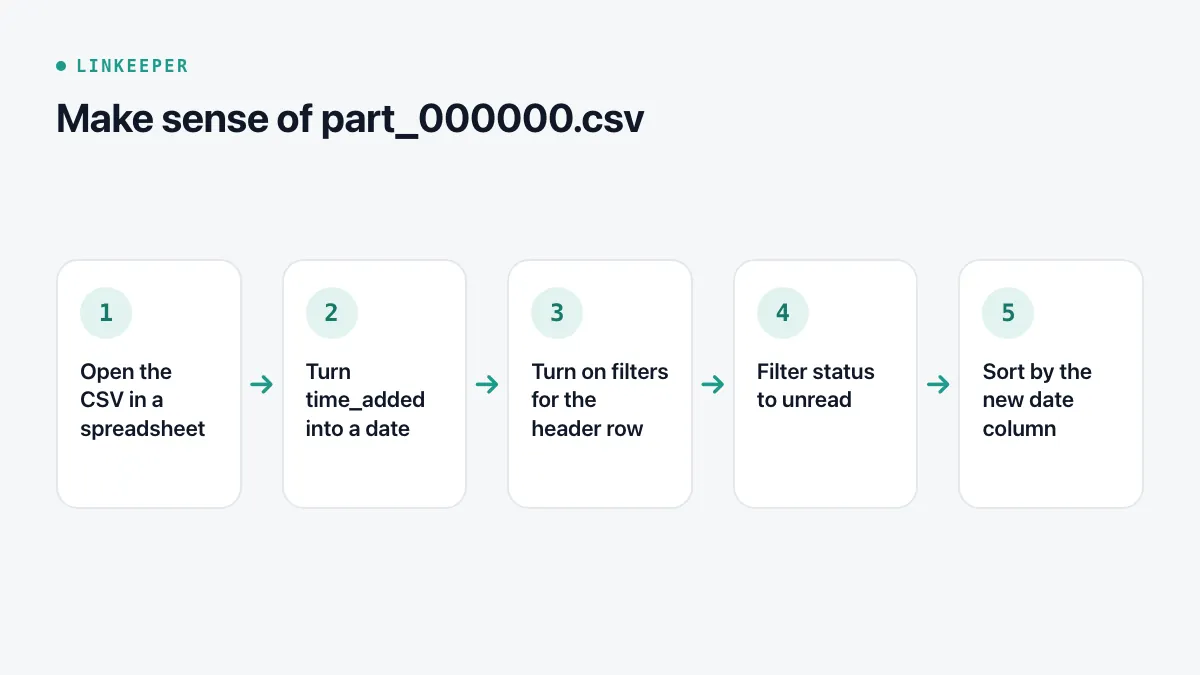
- 1Open the CSV. Each column becomes a spreadsheet column.
- 2Add a column next to time_added to turn the timestamp into a date. In Google Sheets or Excel, if the timestamp is in cell C2, use =C2/86400+DATE(1970,1,1) and format the result as a date.
- 3Turn on filters for the header row.
- 4Filter status to unread to see what you meant to read but never did — usually the most interesting part.
- 5Sort by the new date column to see your library in the order you built it.
Decide what is worth keeping
A Pocket library collected over several years is mostly things you will never open. Moving all of it somewhere new just moves the clutter. Spending twenty minutes on triage first pays off.
- Archived items you already read: keep the ones you might cite or reread, drop the rest.
- Unread items older than a couple of years: open a sample. If the topic no longer matters to you, delete the whole batch.
- Spot-check old links. News sites and blogs move or disappear; if a link is dead, search for the title to see if the article lives somewhere else.
- Look at your tags. Tags you used once or twice can usually be merged into a broader one.
Save the trimmed list as a new CSV and keep the original untouched.
Move it somewhere you will use
Many read-later and bookmark services added a Pocket import when it closed, so check whichever tool you prefer for an import option that accepts the CSV or HTML file. Before importing, it is worth checking three things: whether the file is processed on your device or uploaded, whether duplicates are handled, and whether you can undo the import if the result is messy.
If you would rather not depend on another service, the spreadsheet itself is a perfectly usable archive. Keep the unread filter on and pick one link a day.
Where Linkeeper helps
Linkeeper on iOS can import a Pocket export — the CSV or the older HTML file. Go to Settings → Library → Import from other apps, choose Pocket, then pick the file.
- The file is parsed on your iPhone and never uploaded.
- You see a preview before anything is added.
- Duplicates are skipped, both within the file and against links you already saved.
- If you change your mind, the whole import can be undone.
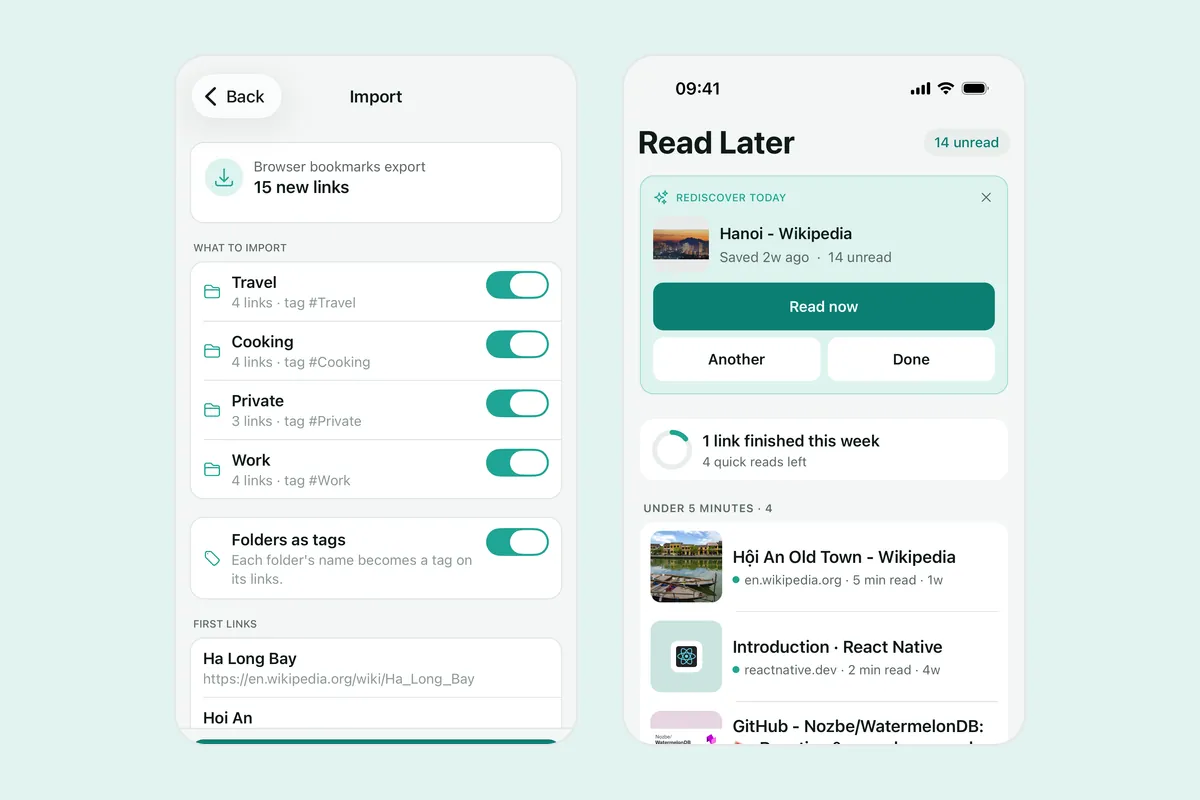
Once imported, your old Pocket links sit next to everything you save from the Share menu and are searchable offline. Linkeeper's Rediscover card on Home also suggests one unread link saved a while ago, once a day — a gentle way to work through a backlog. If your bookmarks are still in a desktop browser, the bookmarks-to-iPhone guide covers that side.