
How to keep track of job listings you want to apply to on iPhone
Published · 6 min read
To keep track of job listings on iPhone, save each listing's link the moment you see it, write the company, deadline and contact next to it, and give every listing a status such as to apply, applied or dropped. Notes can do this for a handful of jobs; a link app such as Linkeeper does it from the share sheet and lets you search the whole list, even offline.
Job hunting is messy because ads come from everywhere: job boards, a company career page, a LinkedIn post, a recruiter's message, a friend's chat. Ads also expire. This guide gives a simple routine using what is already on your iPhone, and shows where Linkeeper fits and where it does not.
Why do job listings get lost so easily?
- They come from many places, so no single app's saved list contains them all.
- Ads are taken down once the role is filled, so a link you open a week later may lead nowhere, with no trace of what the job was.
- The details you need (deadline, salary range, who to contact, which CV version you sent) are in the ad or in a message, not in the link.
- After a dozen listings they blur together, and you apply twice to one role or miss a deadline.
What can I use on iPhone without installing anything?
- Notes: one note called “Job search” with a line per role: link, company, deadline, status. Easy to start, and it gets long fast.
- Reminders: add the deadline as a due date so you get a prompt. It does not hold much detail, but it is good for “apply by Friday”.
- Safari bookmarks or Reading List: fine for pages you open in Safari, but a post inside another app is not a bookmark you can add, and neither has a field for a deadline.
A routine that keeps the list usable
- 1Write your filters at the top of the list: role, location or remote, minimum salary, and your must-haves. It makes dropping a listing easy.
- 2Save the link as soon as you see an ad, from the share sheet of whatever app you are in. Do not rely on remembering it.
- 3Add a one-line note: company, deadline, salary if stated, who to contact.
- 4Copy the key requirements into the note, because the ad may disappear. A few lines is enough.
- 5Give it a status: to apply, applied, interview or dropped. Four is plenty.
- 6When you apply, note the date and which CV or cover letter you used.
- 7Once a week, drop what no longer fits and archive finished listings so the active list stays short.
How does Linkeeper help?
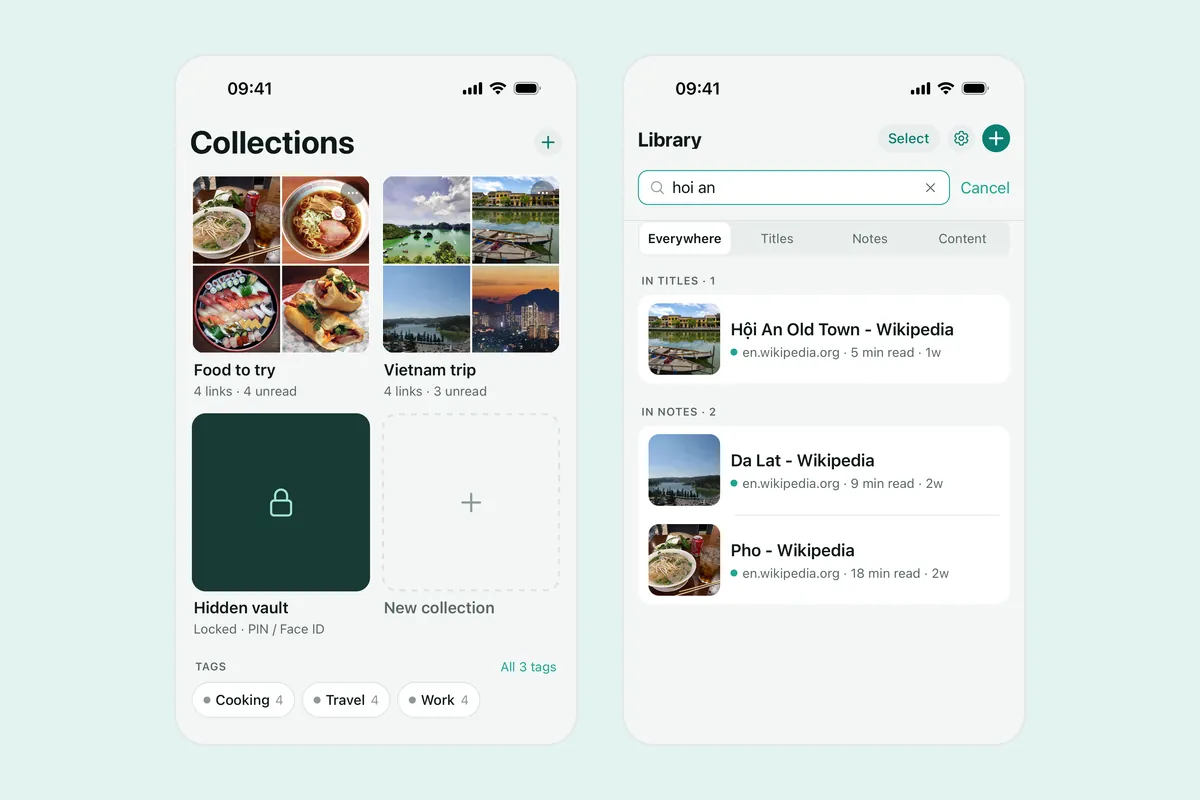
Linkeeper is an iPhone and iPad app that saves links from any app in one tap and keeps them in one organized, searchable library. For a job search:
- Share a listing from Safari or any app with a share sheet, choose Linkeeper, and it is saved without leaving the page. The title and thumbnail are filled in when the page provides them.
- If an app only offers Copy link, open Linkeeper's add screen: it offers to save the link you just copied, and tells you if it is already in your library, so you do not save the same job twice.
- Every link has a note field for the deadline, salary and contact. Search covers titles and notes and works offline.
- Use tags for the kind of role or company, and collections or favorites for status such as “To apply” and “Applied”. Collections have a free limit.
- Archive a listing once you have applied or dropped it. It leaves your list but stays searchable.
Linkeeper saves the link and your own notes. It does not track applications, send deadline alerts or check whether an ad is still open. For a deadline, add a reminder in the Reminders app. For similar saving habits, see how to save and compare rental listings on iPhone.
Which way suits you?
| Notes page | Safari bookmarks | Linkeeper | |
|---|---|---|---|
| Save from any app, including chats and posts | Paste by hand | Web pages only | From the share sheet |
| Note deadline and contact per listing | Yes, in the line | No field for it | Yes, in the note |
| Filter by role or status | Scroll and read | Folders only | Tags, collections, favorites |
| Search offline | Yes | Titles only | Yes, titles and notes |
For five listings, one Notes page is enough. For a long search across several sources, a list with tags and notes saves the most time. A simple structure matters more than the tool; tags or folders explains how to choose.
Frequently asked questions
- How do I save a job posting on my iPhone?
- Open the share sheet in the app showing the ad and save the link to a list app, or copy the link into a Notes page. Add the company, deadline and contact next to it.
- Is there a built-in way to track job applications on iPhone?
- Not a dedicated one. Notes works for a list with statuses, and Reminders can prompt you before a deadline. A link app adds tags, search and saving from any app.
- What if the job ad is taken down?
- The link may stop working, so copy the key requirements and the deadline into your note when you save it.
- Will Linkeeper remind me about a deadline?
- No. Linkeeper keeps the link and your notes but has no per-link deadline alerts. Use the Reminders app for that.
- Does Linkeeper need an account?
- No. Links, notes, tags and collections are stored on your iPhone first. Signing in with Apple or Google is optional and only used to sync your library between devices.