
How to make your iPhone read web pages and articles aloud
Published · 6 min read
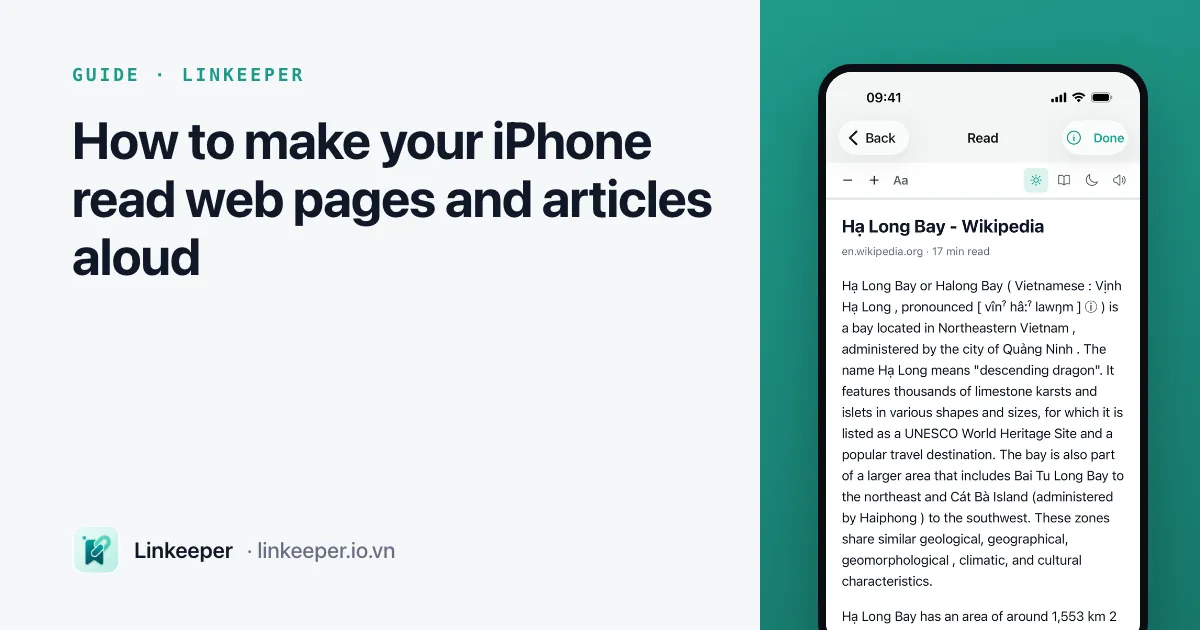
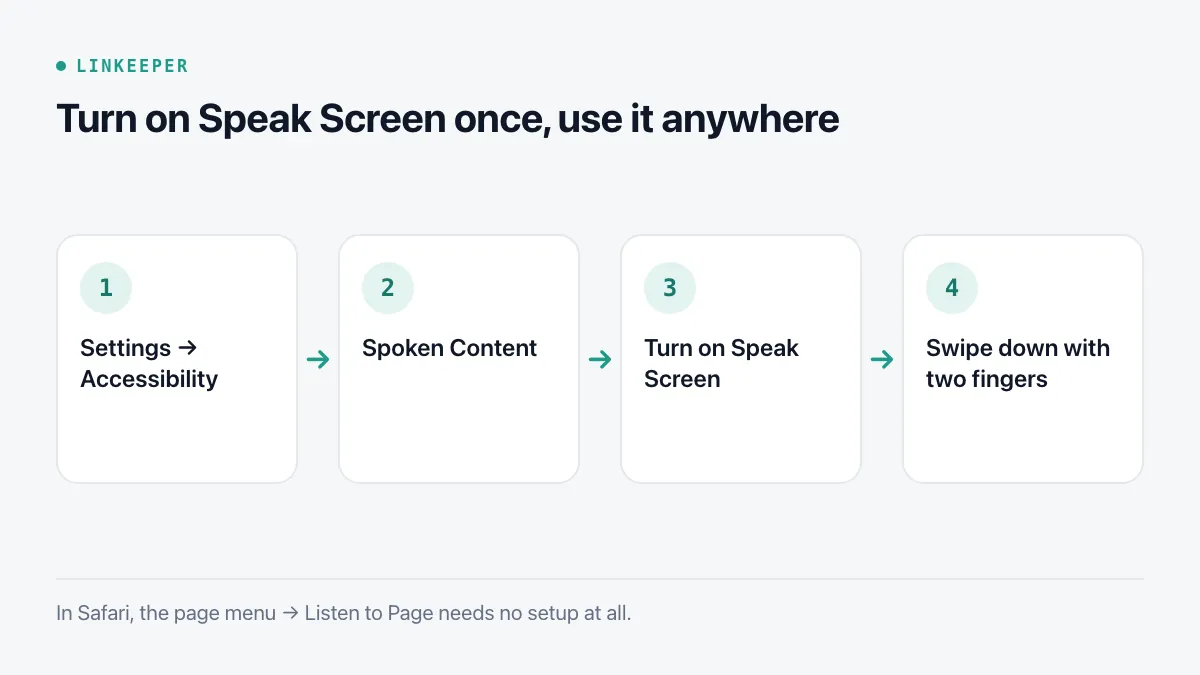
The quickest way to have an iPhone read an article aloud is Safari's Listen to Page: open the article, tap the page menu at the left of the address bar and choose Listen to Page. For any other app, turn on Speak Screen in Settings → Accessibility → Spoken Content and swipe down from the top of the screen with two fingers.
This guide covers both, plus Speak Selection for reading just a paragraph, how to choose a natural-sounding voice in your language, and what to expect from pages with ads, comments or paywalls.
How do I use Listen to Page in Safari?
Listen to Page arrived in Safari with iOS 17. It reads the article text — not menus or ads — in the voice set for your language.
- 1Open the article in Safari.
- 2Tap the page menu button at the left of the address bar (it looks like a small page, or “Aa” on older versions).
- 3Choose Listen to Page. Reading starts from the top of the article.
- 4To pause, open the same menu and choose Pause Listening. The audio also shows on the Lock Screen and in Control Center, so you can lock the phone and keep listening.
If Listen to Page is missing from the menu, Safari did not recognise the page as an article. Try turning on Reader view first (same menu → Show Reader), or use Speak Screen below.
How do I turn on Speak Screen for any app?
Speak Screen reads whatever is on the screen in any app — a news app, an email, a PDF in Files — and scrolls as it goes.
- 1Open Settings → Accessibility → Spoken Content.
- 2Turn on Speak Screen.
- 3Open what you want to hear and swipe down from the top of the screen with two fingers. You can also say “Hey Siri, speak screen”.
- 4Use the small controller that appears to pause, skip forward or back, and change the speed (the tortoise and hare buttons).
Can it read only the part I select?
Yes. In Settings → Accessibility → Spoken Content, turn on Speak Selection. From then on, select any text — touch and hold a word, then drag the handles — and tap Speak in the menu that appears (you may need to tap the arrow to see it). This is handy for a single paragraph, a word you are not sure how to pronounce, or text in a language you are learning.
Highlight Content, in the same settings screen, underlines or highlights words as they are spoken, which makes it easier to follow along.
How do I get a better voice and speed?
The default voice is often a compact one. In Settings → Accessibility → Spoken Content → Voices, pick your language and download an Enhanced or Premium voice if one is offered; they sound noticeably more natural and work offline once downloaded. Vietnamese and English both have several voices to choose from.
- Speaking Rate in the same screen sets the default speed; the controller lets you change it per session.
- Detect Languages lets the iPhone switch voices when a page mixes languages, such as an English quote inside a Vietnamese article.
- Pronunciations lets you teach it how to say a name or brand it keeps getting wrong.
What does not read well?
- Paywalled articles: only the visible part is read. Sign in first.
- Pages that load as you scroll: Speak Screen scrolls, but very long feeds may stop where loading stops.
- Text inside images and videos is not read; captions and alt text sometimes are.
- Tables and code read awkwardly — line by line, without structure.
Listening is also a good way to clear a read-later backlog during a commute or a workout; see how to actually read the articles you save for the habit side of that.
Where Linkeeper helps
Safari's Listen to Page needs the page to load, which means a connection. Linkeeper's reader keeps the text of articles you save on your iPhone, so you can listen anywhere.
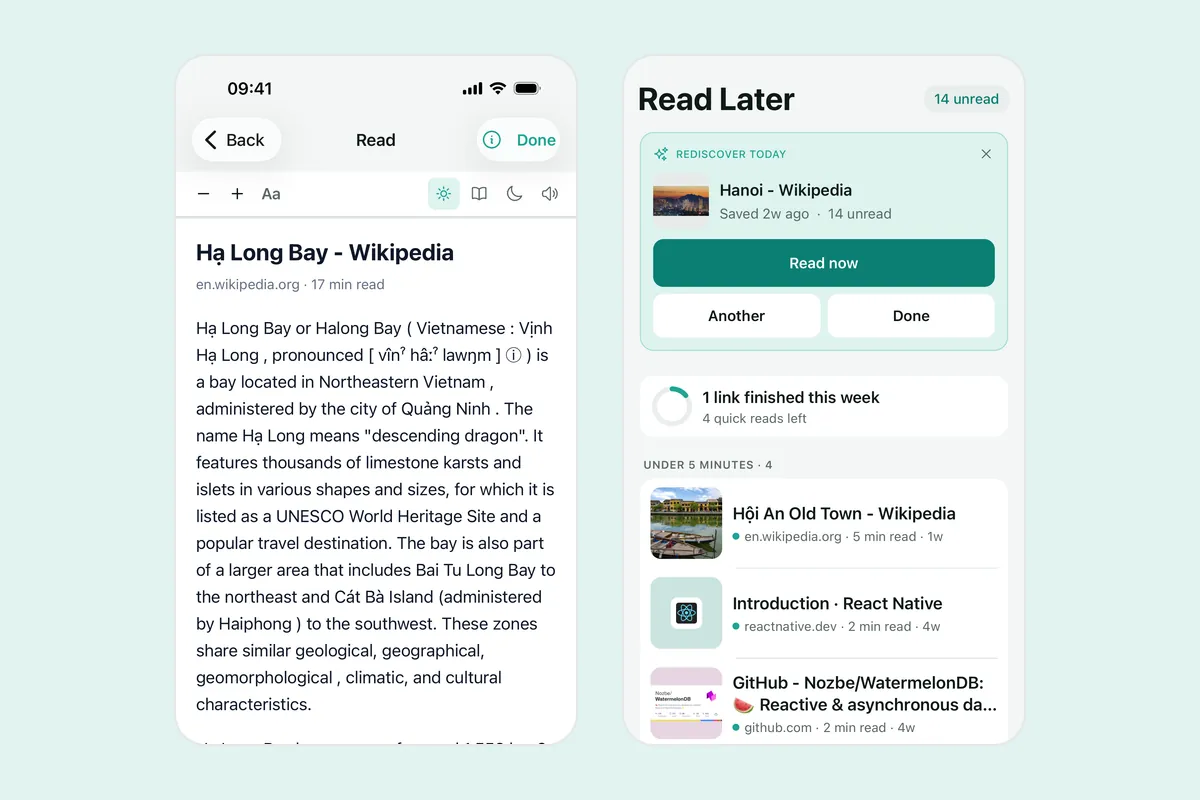
- Open a saved article in the reader and tap the speaker button: Listen mode reads it aloud with your device's voice, offline.
- The reader shows clean text with adjustable size, light, sepia or dark themes and a serif option, and remembers where you stopped.
- Select text while reading to highlight it with a note, then review every highlight from Settings → Highlights.
- Articles are saved from the share sheet in any app, so what you listen to is not limited to Safari.
To keep articles readable without a connection in general, see how to save web pages to read offline.