
How to save open Safari tabs on iPhone and close them
Published · 6 min read
The quickest way to save open Safari tabs on iPhone is to put them all in a Tab Group (Tabs button → the tab bar at the bottom → New Tab Group from tabs), or to add them all as bookmarks in one go. Both keep the whole pile; neither gives you a list you can search or tick off. To save only the pages you really mean to read, share each one to a link-saving app such as Linkeeper, then close the tab.
This guide covers the built-in ways, how to close all your tabs once they are safe, how to make Safari clear old tabs by itself, and a short routine for turning a pile of tabs into a reading list.
Why do I end up with so many tabs, and why is that a problem?
A tab is the easiest “save for later” there is: you do not have to decide anything, you just leave the page open. That is also why tabs pile up into the dozens. Each one is a promise to come back, and a long row of them makes it hard to find the one you need, so you open yet another tab to search again.
Closing everything feels risky because you might lose something good. The fix is to save first, on purpose, and then close. The sections below show how.
How do I save all my open tabs in a Tab Group?
A Tab Group is Safari's own way to keep a set of tabs together. It is the fastest way to clear the main tab view without losing a thing, and it syncs through iCloud to your other Apple devices.
- 1In Safari, tap the Tabs button (two overlapping squares) to see all your tabs.
- 2Tap the bar at the bottom that shows the number of tabs (for example “23 Tabs”).
- 3Choose New Tab Group from 23 Tabs, give it a name such as “To sort”, and tap Save.
- 4Your open tabs now live in that group. You can start again in a clean, empty tab view.
Menu names change a little between iOS versions, so if a button looks different on your phone, check Apple's Safari support pages for your version.
The catch: a Tab Group is still a pile of tabs, just a tidier one. The pages reload when you open them, you cannot mark one as read, and a group of 40 tabs is as hard to get through as 40 loose tabs.
How do I bookmark all open tabs at once?
Safari can also turn every open tab into a bookmark in a new folder. It is a good way to keep the links when you do not need the tabs to stay open.
- 1Touch and hold the Bookmarks button (the open book) in Safari's toolbar.
- 2Choose Add Bookmarks for 23 Tabs.
- 3Pick where to save it, for example a new folder called “Tabs 12 Oct”, and tap Save.
Afterwards you find them under Bookmarks. This keeps the titles and addresses, but a folder of 40 bookmarks is not a to-read list: nothing tells you which ones you have read, and the folder tends to grow and be forgotten. If you go this way, see how to organize bookmarks with tags or folders.
How do I close all tabs once they are saved?
- 1Tap the Tabs button to open the tab view.
- 2Touch and hold Done at the bottom.
- 3Choose Close All 23 Tabs and confirm.
Only do this after you have saved what matters. If you close by mistake, tap the Tabs button, then touch and hold the plus button to see Recently Closed Tabs and reopen what you lost.
Can Safari close old tabs for me?
Yes. Safari can close tabs you have not looked at for a while:
- 1Open Settings → Apps → Safari (on iOS 17 and earlier, it is simply Settings → Safari).
- 2Scroll to the Tabs section and tap Close Tabs.
- 3Choose Manually, After One Day, After One Week or After One Month.
Automatic closing is only safe if you saved what mattered first. Closed tabs are not a read-later list, and a tab Safari closed after a month is easy to forget it ever held anything.
How do I turn the tabs I want to read into a reading list?
Most tabs fall into three kinds: pages you will read, pages you already read, and pages you opened and forgot. Only the first kind needs saving. Go through your tabs once, quickly:
- 1Open a tab and decide in a few seconds: read now, save for later, or close.
- 2If it is worth keeping, tap Share and choose the app you save links to (Safari's own choices are Add to Reading List and Add Bookmark). If the app is missing from the row, add it to the share sheet once and pin it to the front.
- 3Close the tab straight away, then move to the next one.
Doing a few at a time works better than a one-hour cleanup. Ten tabs after lunch is enough, and the saved pages end up in one place instead of spread across tabs, bookmarks and a Reading List. For what to do with that list afterwards, see how to actually read the articles you save.
How does Linkeeper make this easier?
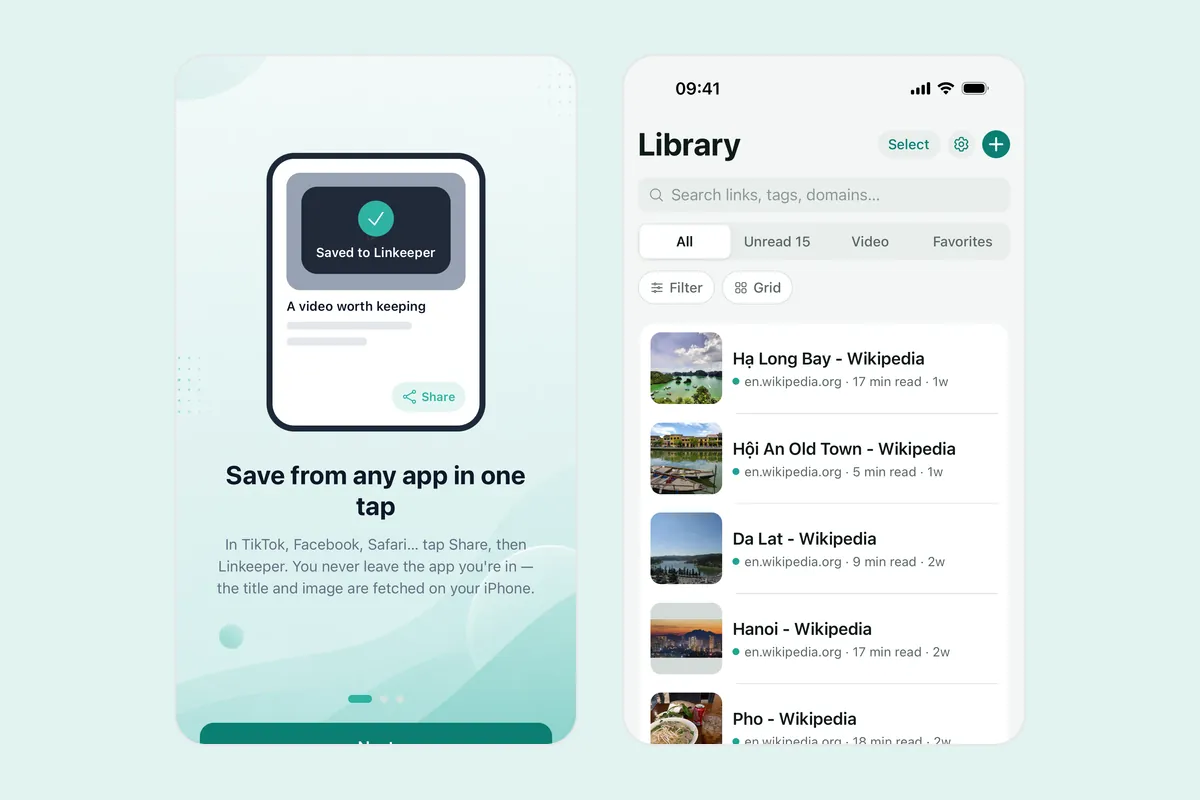
Linkeeper is a link-saving app for iPhone and iPad. For tabs it does one thing well: it lets you save a page and close it in a few seconds each.
- Tap Share → Linkeeper in Safari. The link is saved without opening the app, and a small “Saved to Linkeeper” card closes by itself, so you can close the tab and move on.
- The title and thumbnail are fetched for you, and the link is tagged by its source. You can add your own tags or put it in a collection from the link's details.
- Read and unread states show what is still waiting, and the Read Later tab groups unread articles by how long they take, such as under five minutes.
- Search runs on the device, so you can find a page by a word from its title, your note or the article text, even offline.
- Reading is offline too: saved articles open in a reader mode with adjustable text.
Honest limits: Linkeeper has no button that saves every open tab at once, so it is one page at a time, which is also what forces the “is this worth keeping?” decision. If you already have a long list of bookmarks on a computer, export them as a file and import them into Linkeeper instead. Linkeeper keeps the link and the article text, not a copy of the whole page as it looked.
Quick facts
- Tab Group: keeps tabs together, syncs through iCloud, still a pile of tabs.
- Add Bookmarks for N Tabs: saves every tab as a bookmark in a folder, no read or unread state.
- Touch and hold Done → Close All Tabs: clears the tab view in two taps; Recently Closed Tabs can bring tabs back.
- Settings → Safari → Close Tabs: closes old tabs after a day, a week or a month.
- Linkeeper: Share → Linkeeper saves a page in about a second, then you close the tab; one page at a time.
Frequently asked questions
- How do I save all open tabs in Safari on iPhone?
- Tap the Tabs button, tap the bar that shows the number of tabs, and choose New Tab Group from N Tabs. Or touch and hold the Bookmarks button and choose Add Bookmarks for N Tabs to save them all as bookmarks in a folder.
- How do I close all Safari tabs at once on iPhone?
- Open the tab view with the Tabs button, touch and hold Done, and choose Close All Tabs. Save the pages you need first, because closed tabs are not kept as a list, although Recently Closed Tabs can bring some back.
- Can Safari close old tabs automatically?
- Yes. In Settings → Safari → Close Tabs you can choose Manually, After One Day, After One Week or After One Month.
- Can Linkeeper save all my Safari tabs in one tap?
- No. You save one page at a time with Share → Linkeeper, and the app saves it without opening. To move many bookmarks from a computer at once, export a bookmarks file and use Linkeeper's import.
- Does a Tab Group sync to my other devices?
- Safari Tab Groups sync through iCloud to your other Apple devices that use the same Apple Account with Safari turned on in iCloud.