How to clear your Safari Reading List on iPhone (delete many items at once)
Published · 4 min read
On iPhone you delete Reading List items by swiping left on each one. I could not confirm a single “clear all” button on iPhone: guides disagree, and it depends on your iOS version. On a Mac there is a Clear All Items option in the right-click menu.
This guide covers the swipe method, the options for removing many items, what deleting does on your other Apple devices, and a quick way to rescue the articles you still want first. Safari’s menus change a little between iOS versions, so if a label differs, use what is closest on your screen.
How do I delete items from the Reading List on iPhone?
- 1Open Safari and tap the Bookmarks button (the open book).
- 2Tap the Reading List tab (the glasses icon).
- 3Swipe left on an item and tap Delete.
Swiping right on an item marks it as read instead, which hides it if the list is set to show only unread items. That is a gentler option than deleting when you only want a shorter list.
Can I delete the whole Reading List at once?
On iPhone, I found no confirmed one-tap way. Some guides describe an Edit button in the Reading List that lets you select several items and delete them, and some mention a Delete All button there. Other guides say iOS has no option to remove everything at once. Open the Reading List on your iPhone and look for Edit: if your iOS version shows it, use it; if not, swipe item by item.
On a Mac, Safari’s sidebar is quicker: open the Reading List, right-click an item and choose Clear All Items. Because Reading List syncs through iCloud, that can empty the list on your iPhone as well; read the next section before you do it.
What does deleting remove on my other devices?
- Synced items. With Safari turned on in iCloud and the same Apple Account, a deletion on one device usually appears on the others. There is no “remove only from this phone” choice.
- Offline copies. Items saved for offline reading can take storage. Settings → General → iPhone Storage → Safari may show an offline Reading List entry you can clear; whether it appears depends on your iOS version.
- Nothing outside Safari. Deleting from Reading List does not touch your bookmarks, your history or the page itself.
How do I keep the articles I still want before clearing?
Safari has no Export button for Reading List, so the dependable way to keep something is to share it into another place first. See how to export your Safari Reading List for the options and a test for whether Safari’s bookmark export includes the list.
- 1Open the Reading List and open an article you want to keep.
- 2Tap Share, then choose Linkeeper in the row of apps. It saves the link without opening the app. If Linkeeper is not in the row, add it to the share sheet first.
- 3Delete the item from Reading List once it is saved.
If the list has grown into a backlog you never get through, how to actually read your saved articles has a way to cut it down.
How does clearing work in Linkeeper?
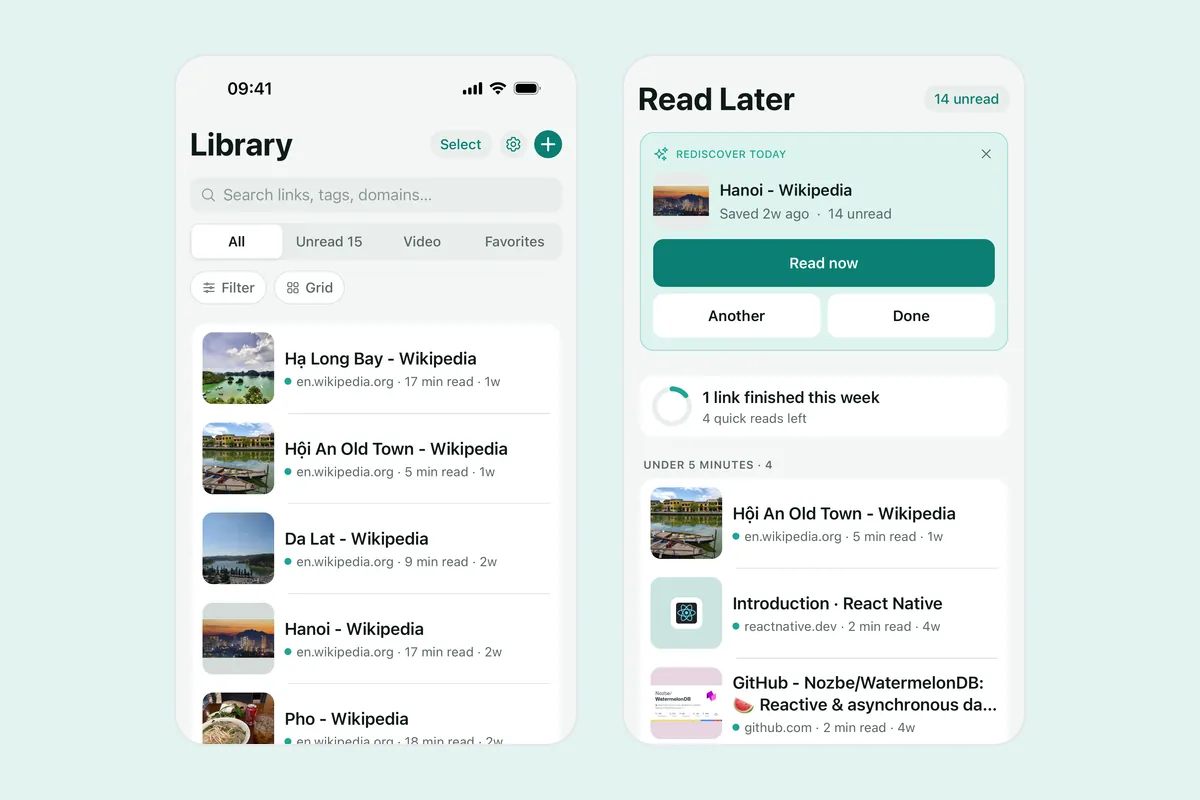
Linkeeper is an iPhone and iPad app that saves links from any app in one tap and keeps them in one organized, searchable library to read later. Its library has a Select button: tap it, tap the links you want or choose Select all, then use the bar at the bottom to mark them read, archive them, hide them in the vault or delete them.
Deleting several links asks for confirmation and says it cannot be undone. Marking as read, archiving and hiding show a confirmation with an Undo option instead, so archiving is the safer choice when you are not sure you want a link gone.
Frequently asked questions
- How do I delete everything from the Safari Reading List on iPhone?
- Swipe left on each item and tap Delete. If your iOS version shows an Edit button in the Reading List, you can select several items and delete them together. On a Mac, right-click an item in the sidebar and choose Clear All Items.
- Will deleting from Reading List on my iPhone delete it on my Mac?
- Usually yes, if Safari is turned on in iCloud and both devices use the same Apple Account. The Reading List syncs, so a deletion on one device normally appears on the others.
- Can I get a deleted Reading List item back?
- Not from the Reading List. If you still have the page open in a tab or in your history, you can add it again. See how to reopen a closed tab on iPhone.
- Is there a way to shrink the list without deleting?
- Yes. Swipe right on an item to mark it as read, then show only unread items. Saving the links you want to keep in another app before deleting the rest also works.