
How to stop the “Allow Paste” pop-up on iPhone (and why it appears)
Published · 4 min read
The “Allow Paste” pop-up appears when an app reads what you copied in a different app. iOS has no switch that turns it off for every app. You set it per app: open Settings, find the app, and change Paste from Other Apps to Allow. Deny also stops the pop-up, but then pasting from other apps no longer works in that app.
This guide explains why the prompt exists, where the setting lives, and how to avoid pasting altogether when all you want is to keep a link. Menu paths differ slightly between iOS versions, so if a screen does not match, use the Settings search field.
Why does my iPhone ask “Allow Paste”?
Whatever you copy sits on a shared clipboard that any app could read. To stop apps from quietly reading it, iOS asks you the first time an app tries to read something you copied in another app. The message names both apps, for example “Allow [app] to paste from [other app]?”.
The pop-up is a privacy feature, not an error. It can feel repetitive if you paste often, which is why the setting below exists.
How do I stop the pop-up for one app?
- 1Open Settings and find the app, either in the app list or with the search field. On newer iOS versions apps are grouped under Apps.
- 2Tap Paste from Other Apps. If you do not see it, the app has not asked to paste yet, or your iOS version does not include the option.
- 3Choose Allow to paste without being asked. Choose Ask to keep the prompt. Choose Deny to block pasting from other apps in that app.
Each app has its own setting, so the change does not carry over to other apps. Only allow it for apps you trust; Allow means that app can read what you copy elsewhere whenever it pastes.
Is there a way to turn it off for all apps?
Not as a single system switch. People suggest resetting all settings or updating iOS, but a reset changes much more than a prompt, so try the per-app setting first. If the pop-up shows up on every paste even after choosing Allow, update iOS and check the setting again.
Can I avoid pasting when I just want to keep a link?
Yes. Pasting is only needed when a link is on the clipboard. If the app you are reading offers the Share button, you can send the link straight to an app that saves it, and nothing is read from the clipboard. See how to add an app to the iPhone share sheet. For links you already copied, see how to find a link you copied on iPhone.
How does Linkeeper handle the pop-up?
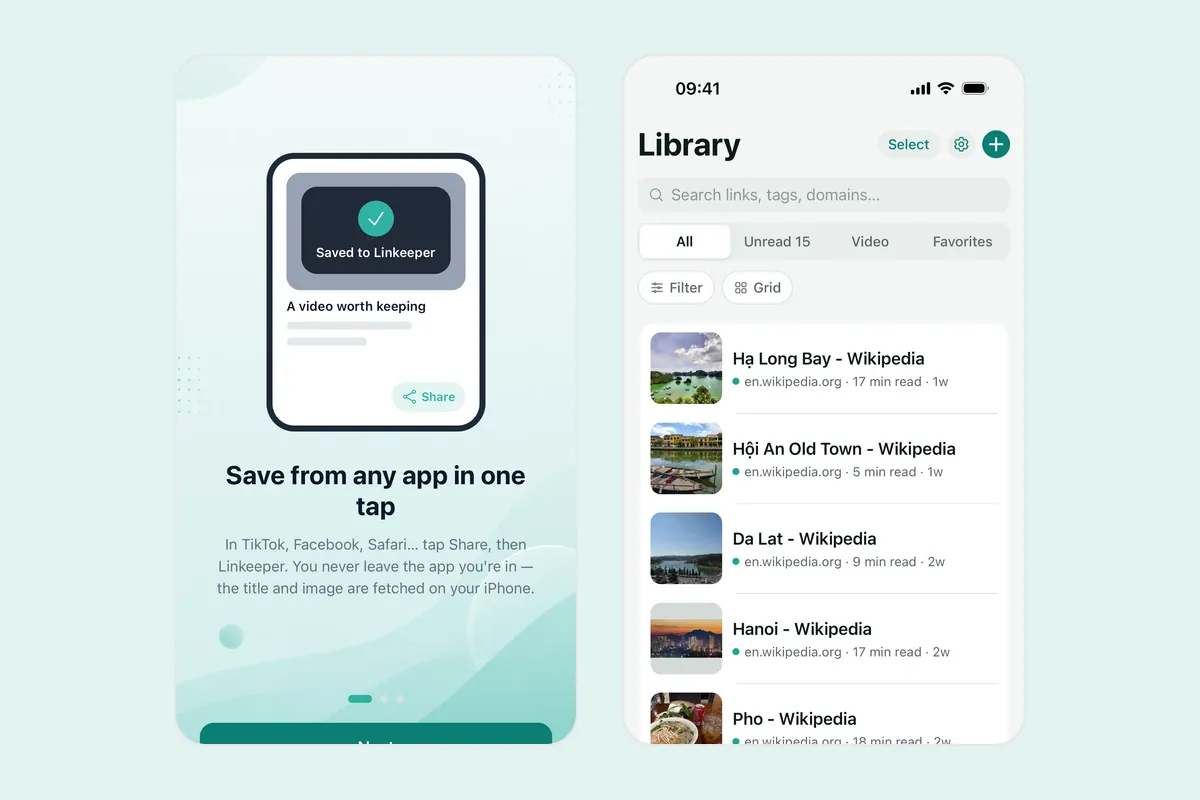
Linkeeper is an iPhone and iPad app that saves links from any app in one tap and keeps them in one organized, searchable library to read later. Saving from the share sheet does not touch the clipboard.
If you copied a link instead, Linkeeper’s add screen checks whether the clipboard holds a link without reading it, so opening the screen does not trigger the pop-up. It reads the link only when you tap Save copied link or Paste, and at that point iOS may ask you to allow pasting.
Frequently asked questions
- Why does my iPhone keep asking to allow paste?
- An app is reading something you copied in another app, and the app’s Paste from Other Apps setting is on Ask. Setting it to Allow stops the question for that app.
- Can I turn off Allow Paste for all apps at once?
- No single system switch exists. The setting is per app, in Settings under the app’s name.
- What does Deny do?
- Deny stops the pop-up by blocking pasting from other apps in that app, so pasting there will not work.
- Can I save a link without pasting it?
- Yes. Use the Share button in the app you are reading and choose an app that saves links, such as Linkeeper. Nothing is read from the clipboard.