
How to open, copy and save a link from a screenshot or photo on iPhone
Published · 5 min read
You screenshot a post, a slide or a poster because it has a web address in it, and later the address does not work: it is only pixels. On iPhone, Live Text can read the text in a screenshot or a photo and turn the address back into a link you can open or copy.
This guide shows how, which iPhones and iOS versions support it, and how to save the link afterwards so it does not get lost in your Photos again. We use Linkeeper as the example for saving. Menu names are from recent iOS versions and can differ slightly on yours.
Why can't I tap a link in a screenshot?
A screenshot is an image. Whatever was a live link on the screen is saved as coloured pixels, so tapping it does nothing. The same goes for a photo of a printed address, a slide or a sign.
iOS can read text inside images. This is called Live Text. It needs an iPhone XS, iPhone XR or later, running iOS 15 or later. On older iPhones the steps below are not available, and the only option is to type the address by hand.
How do I open or copy a link from a screenshot in Photos?
- 1Open the Photos app and tap the screenshot or photo.
- 2Wait a second for iOS to read it. If you see a small Live Text button in the bottom corner, tap it, and the text in the picture is highlighted.
- 3If the address is recognised as a link, it is underlined or shown as a link. Tap it to open it in Safari.
- 4To copy instead of open, touch and hold the link. A menu appears; choose Copy Link if it is offered.
- 5If it is not offered as a link, touch and hold the address text itself, drag the handles to cover the whole address, and tap Copy.
You can do the same in the Camera app: point the camera at the printed address and tap the Live Text button that appears in the frame. If you only need to scan a code, see how to save the link from a QR code.
Other places show the same button too. In the Photos app on a paused video, in Safari on an image, and in the Camera view inside some apps, Live Text works the same way, though video needs iOS 16 or later.
Why does the copied address not work, or end up wrong?
- It has no https://: many screenshots show only example.com/page. Live Text may copy just that. Add https:// in front of it before you save it.
- A letter was misread: Live Text can mix up l, I and 1, or 0 and O, especially in small or stylised text. Read the pasted address once and fix any wrong character.
- The address wrapped onto two lines: select both lines, or paste it and delete the space or line break in the middle.
- It was a shortened link: the address in the picture can expire or be disabled by whoever made it. If that happens, look for the same page by its title instead.
- The picture is too small or blurry: zoom in, or take a sharper screenshot.
If the page was removed, what to do when a saved link says 404 lists ways to find it again.
How do I save the link instead of keeping the screenshot?
A screenshot of a link is hard to use later: you cannot search for the address, and it sits among hundreds of other pictures. Once you have copied the address, save it as a link instead and delete the screenshot if you want.
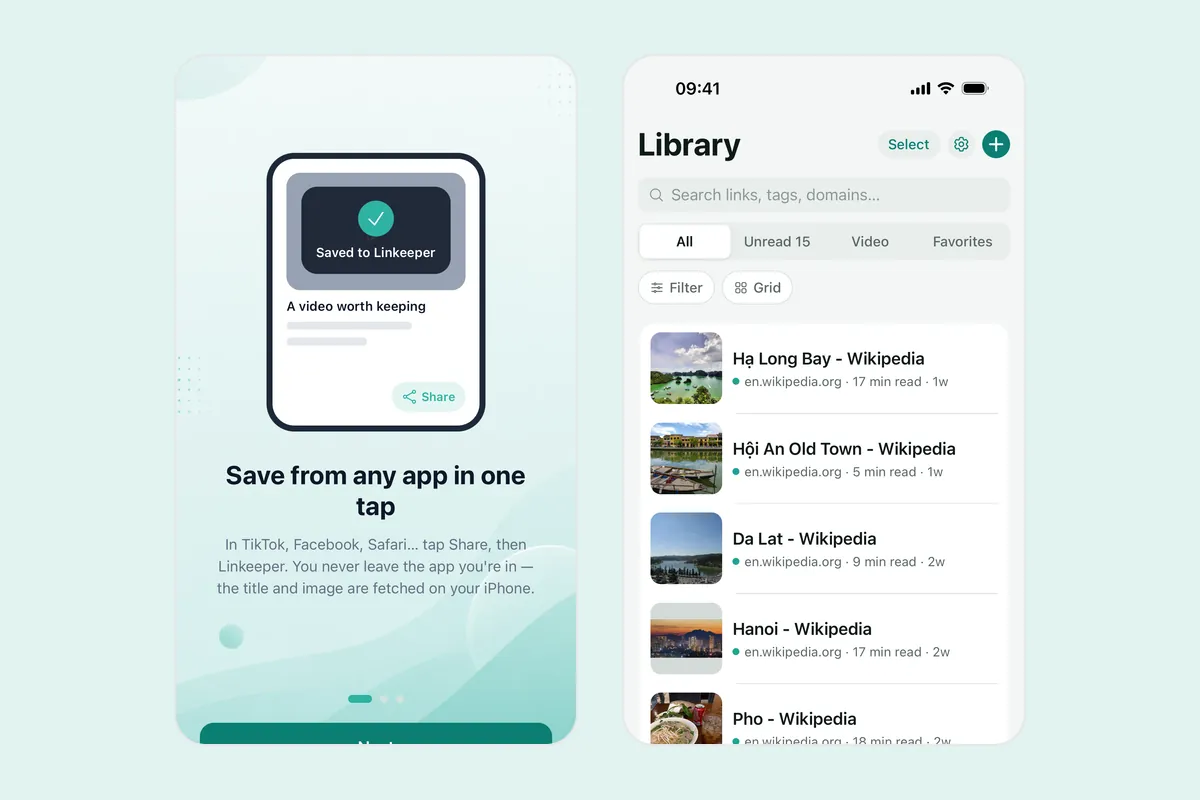
Linkeeper is an iPhone and iPad app that saves links from any app in one tap and keeps them in one organized, searchable library to read later. Its Add link screen takes a copied link:
- 1Copy the link as above, with https:// in front.
- 2Open Linkeeper and tap Add link.
- 3If a web address is on the clipboard, a “You copied a link” card shows a Save copied link button. Tap it. iOS may ask if Linkeeper may paste from another app; that is the normal clipboard prompt.
- 4Otherwise paste or type the address in the URL field, then tap Save link. You can add a note about why you are keeping it.
Linkeeper only accepts addresses that start with http:// or https://. If you paste an address without it, the app shows “Enter a link that starts with http:// or https://”, so add it and save again. If the clipboard holds no web link, it shows “No link found in what you copied”.
Linkeeper then fetches the title and image where the site provides them. It shows “Already in your library” if the link is saved already, with a button to open the saved link. To stop the paste pop-up, see how to stop the “Allow Paste” pop-up.
Can I save the screenshot's link without copying it first?
Not directly. Linkeeper saves links, not pictures, so it cannot read the address inside an image on its own. The reliable route is to let Live Text turn the address into text first, then copy and save it. If the address is in an app rather than an image, the share sheet is quicker; see how to add an app to the iPhone share sheet.
Frequently asked questions
- How do I open a link from a screenshot on iPhone?
- Open the screenshot in Photos, tap the Live Text button in the corner, and tap the underlined address to open it in Safari. Live Text needs an iPhone XS, iPhone XR or later with iOS 15 or later.
- How do I copy a link from a photo on iPhone?
- Open the photo in Photos, turn on Live Text, then touch and hold the address and choose Copy Link or Copy. The Camera app can do the same with printed addresses.
- Why does Linkeeper say my copied address is not a link?
- Linkeeper accepts only addresses that start with http:// or https://. Add https:// in front of an address copied from a screenshot, then save it again.
- Can Linkeeper read the link inside a screenshot?
- No. It saves links, not pictures. Use Live Text to copy the address first, then save it with Add link.