
How to back up your bookmarks and saved links before switching iPhones
Published · 6 min read
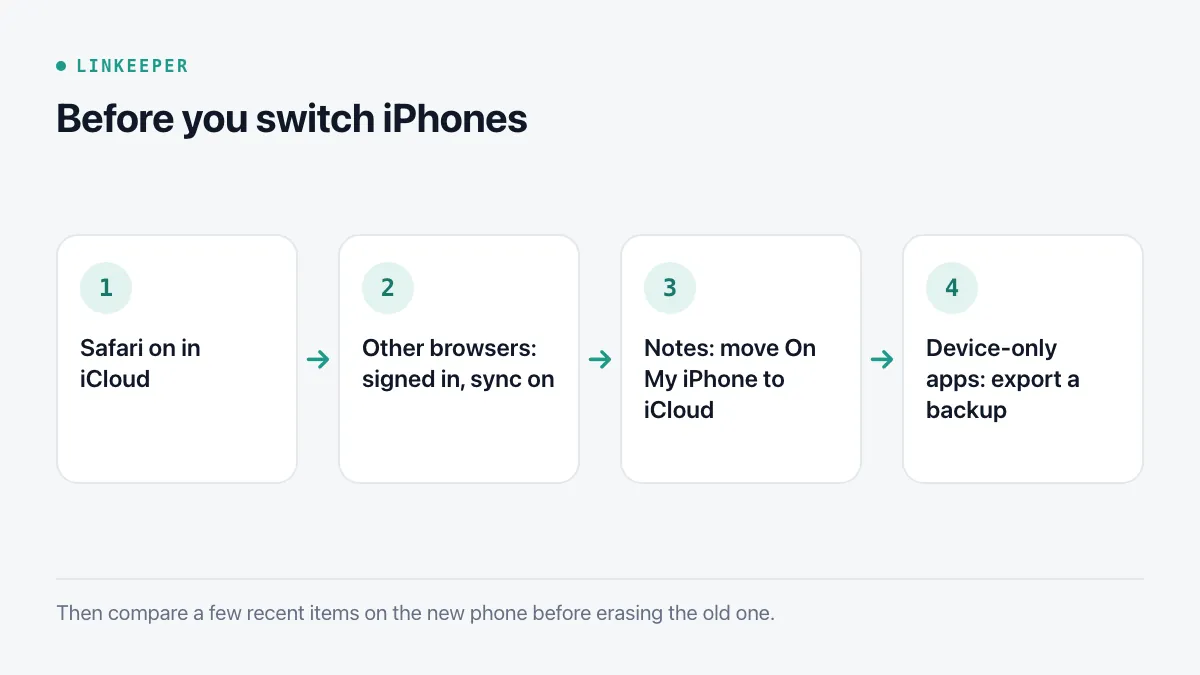
Before you switch iPhones, make sure Safari is turned on in Settings → your name → iCloud: that alone carries your bookmarks, Reading List and open tabs to the new phone. Other browsers need their own sign-in and sync, notes stored “On My iPhone” do not sync at all, and apps that keep data only on the device need either your full backup or their own export.
This guide is a short checklist for each of those, plus how to verify on the new phone that nothing was left behind. (Moving bookmarks from a computer to an iPhone is a different job — see moving Chrome, Edge or Firefox bookmarks to iPhone.)
How do I make sure Safari bookmarks come with me?
- 1Open Settings and tap your name at the top, then iCloud.
- 2Find Safari in the list of apps using iCloud (tap See All if it is not shown) and make sure it is on.
- 3On Wi-Fi, open Safari and leave it for a minute so the latest changes upload.
- 4On the new iPhone, sign in with the same Apple Account and turn on Safari in iCloud there too.
Safari's iCloud sync covers bookmarks, Favorites, Reading List (including items saved for offline reading, which download again) and tab groups. History syncs too unless you turned it off.
What about Chrome and other browsers?
Chrome, Edge and Firefox keep bookmarks in your account with them, not in iCloud. In each browser's settings, check that you are signed in and that sync includes bookmarks (in Chrome: Settings → your name → Sync, with Bookmarks on). On the new phone, install the browser, sign in, and the bookmarks come back.
Are links in Notes and Reminders safe?
Only if they are in iCloud. Notes can live in iCloud or “On My iPhone”; the second kind is not synced.
- In Notes, go back to the folder list. If there is an On My iPhone section, move its notes into an iCloud folder (touch and hold a note → Move).
- Check Settings → your name → iCloud and make sure Notes and Reminders are on.
- Locked notes sync like the others; you will need the same passcode or notes password on the new phone.
What about apps that store links only on the phone?
Many apps keep data on the device and nowhere else. There are two ways to bring that data along:
- Transfer everything: Quick Start (holding the new phone next to the old one) or restoring from an iCloud or computer backup copies apps' local data along with them. Make sure the backup finished recently: Settings → your name → iCloud → iCloud Backup shows the last successful backup.
- Use the app's own export: if you are setting up the new phone fresh, or want a copy you control, export from each app first. Look in its settings for Export, Backup or Download your data, and save the file to Files → iCloud Drive.
Doing both is cheap insurance. A file in iCloud Drive is still there if the phone-to-phone transfer is interrupted.
How do I check nothing was lost?
- 1Before wiping the old phone, open the bookmarks and lists you care about on the new one and compare a few recent items.
- 2Open a couple of Reading List items in airplane mode to confirm the offline copies downloaded.
- 3Only then erase the old phone (Settings → General → Transfer or Reset iPhone).
Where Linkeeper helps
Linkeeper stores your library on the iPhone first, so moving it is in your hands, with or without an account.
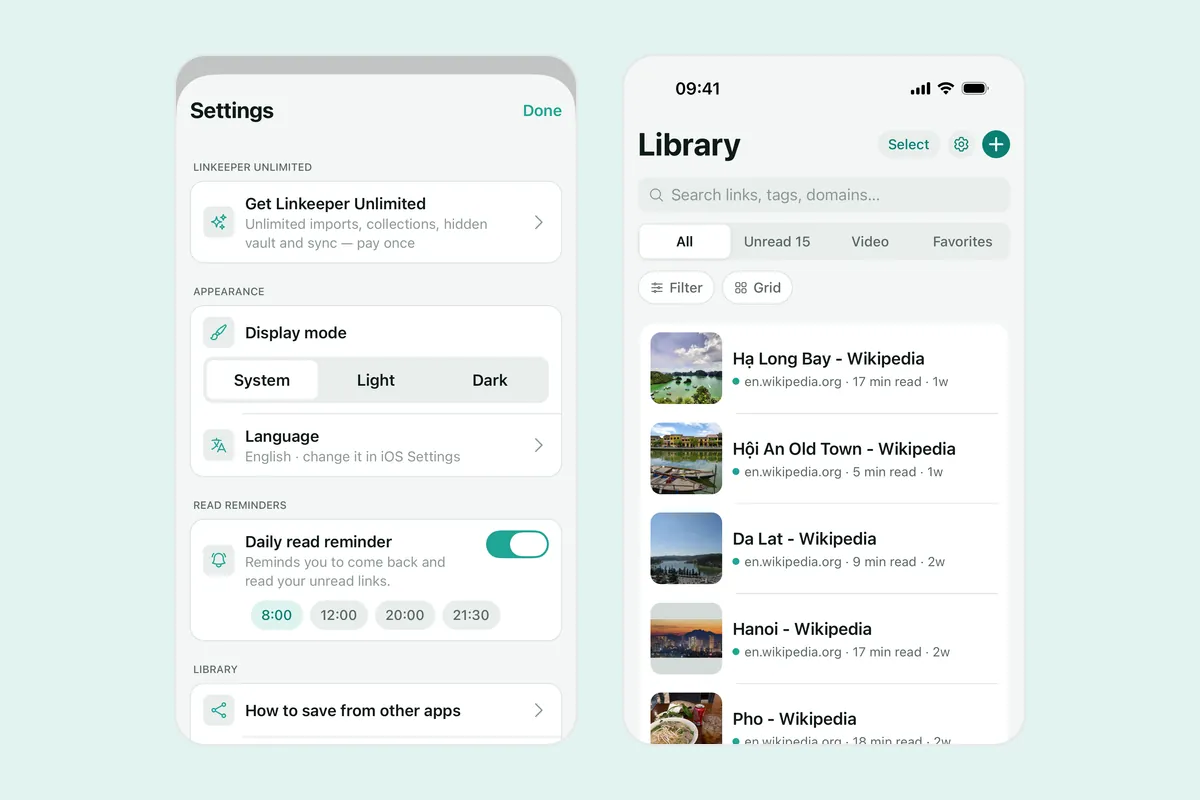
- Export the whole library — every link with its tags — to a JSON backup file from Settings, save it to iCloud Drive, and restore it on the new phone. No account is needed.
- Or sign in with Apple or Google and let sync bring the library across. Sync is optional; from version 1.3, it is part of Linkeeper Unlimited for new users, and people who already used sync keep it.
- Links in the hidden vault come along in both cases and stay hidden.
- Coming from another service as well? Linkeeper on iOS imports browser bookmark files and Pocket, TikTok and Instagram exports, read on your iPhone and never uploaded.
Questions about what is stored where are answered in the FAQ.