How to add an app to the iPhone share sheet (and move it to the front)
Published · 5 min read
To add an app to the iPhone share sheet, tap Share anywhere, scroll the row of app icons all the way to the right, tap More, then Edit, and add the app to Favorites with the green plus button. Favorites always appear first, so the app you save to most is one tap away.
Below are the steps in detail, why an app you installed may still be missing, how to clean up the long list of actions underneath, and how to reach the iOS share sheet from apps that show their own share panel.
What is the share sheet?
The share sheet is the panel that slides up when you tap Share (the square with an arrow pointing up) in Safari, Photos, Files and most other apps. It has three parts: people you message often at the top, a row of app icons in the middle, and a list of actions such as Copy, Add to Reading List or Save to Files below.
Apps you install can add themselves to the middle row. Messages, Mail and Notes are there by default; a read-later or link-saving app appears once it is installed — but iOS does not always put it where you can see it.
How do I add an app and move it to the front?
- 1Open any page in Safari and tap Share.
- 2Swipe the row of app icons to the left until the end, and tap More (three dots).
- 3Tap Edit at the top right.
- 4Under Suggestions, find the app and tap the green plus button to add it to Favorites. If there is a switch next to it, make sure it is on.
- 5In Favorites, touch and drag the handle (three lines) to put the app first, then tap Done.
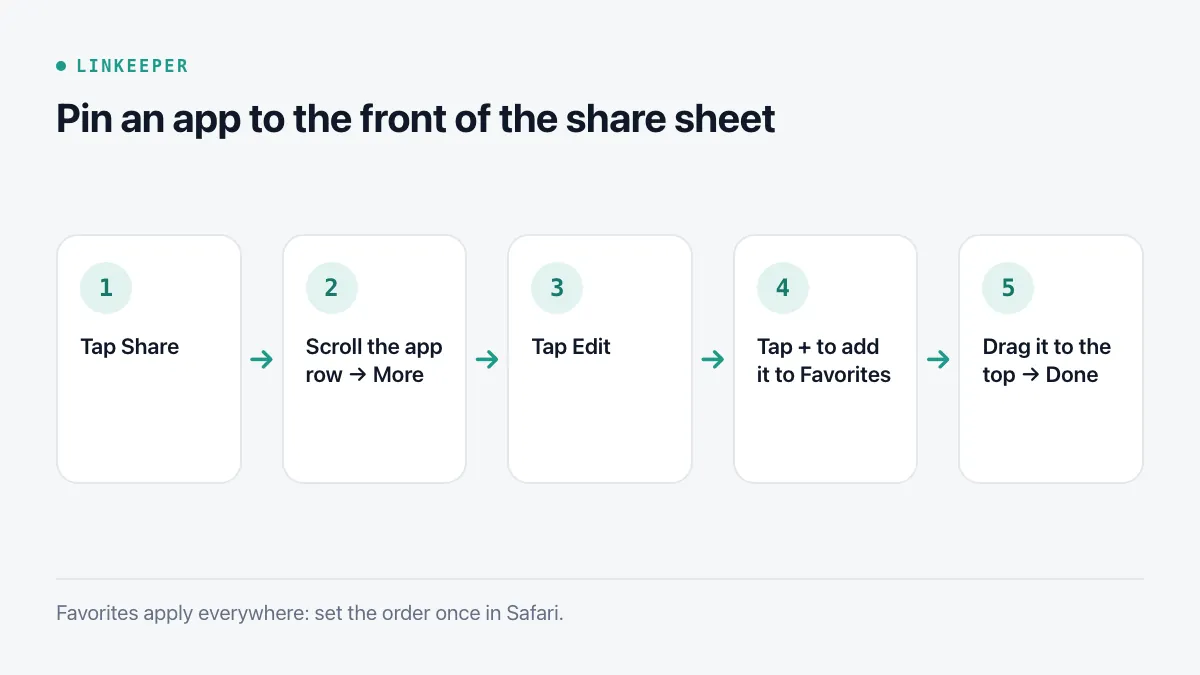
Favorites are shared by every app on the phone: set it once in Safari and the same order appears when you share from TikTok, Photos or Files.
Why is an app missing from the share sheet?
If you cannot find an app even under More, check these in order:
- Open the app once after installing it. Some apps only register their share extension after the first launch.
- Scroll the More list: it is long, and the app may be under Suggestions rather than Favorites.
- The content may be the wrong type. An app that saves links will not appear when you share a photo or a file, only when you share a link or a web page.
- Restart the iPhone if an app that used to appear has vanished after an update; the share sheet is rebuilt on restart.
How do I tidy the actions list?
The list below the app row works the same way. Scroll to the bottom, tap Edit Actions, add the ones you use to Favorites with the plus button, drag them into order, and remove the rest from Favorites with the minus button. Actions such as Copy, Add to Reading List, Add Bookmark and Save to Files are worth keeping near the top if you save pages often.
What if an app shows its own share panel?
TikTok, Instagram, Facebook, Threads and YouTube open their own share panel first, with friends and in-app options, not the iOS share sheet. The system sheet is one tap further:
- Look for More, Share via…, Share to… or the iOS share icon (square with an arrow) at the end of the app's row.
- Some apps only offer Copy link. In that case copy the link, then paste it into the app you save to.
- In Safari you always get the system sheet directly, so a link that will not share from an app can be opened in Safari first.
Each social app's own save button is covered in how to save TikTok, Instagram and Facebook links; for links that arrive in chats, see finding links in Zalo and Messenger.
Where Linkeeper helps
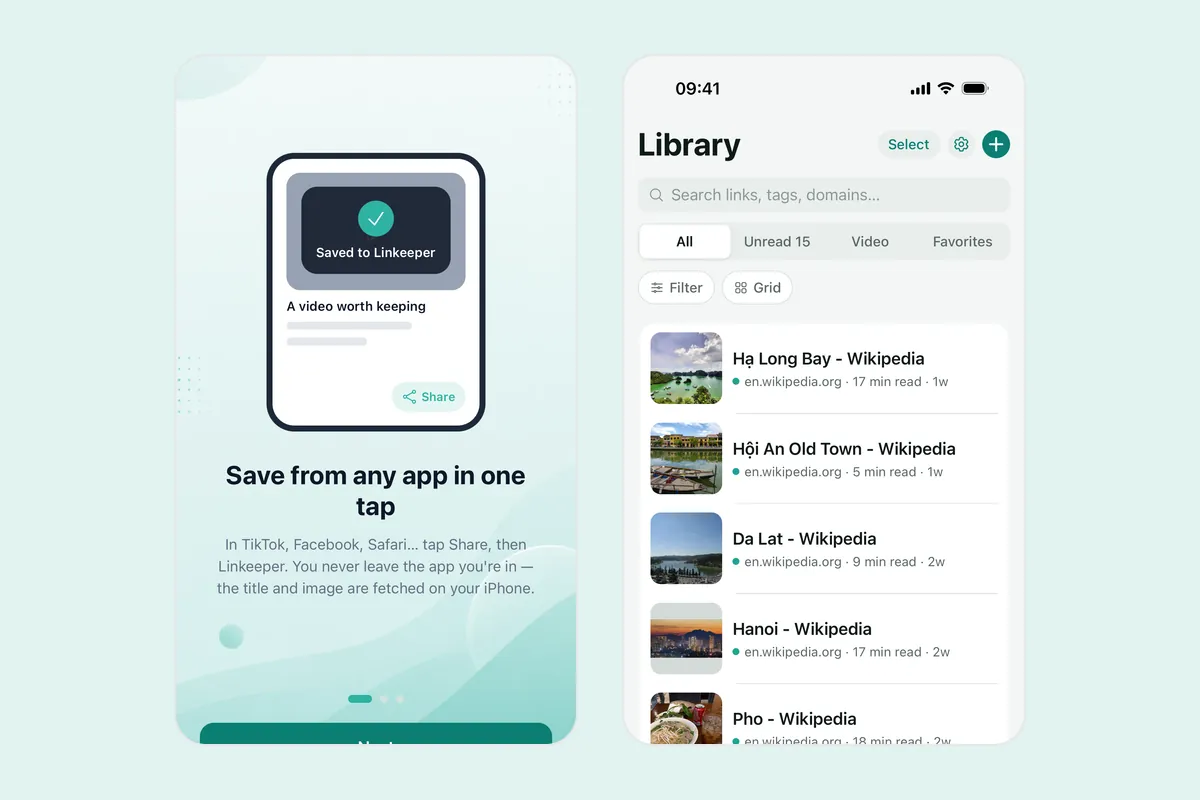
Linkeeper is built around the share sheet: once it is in your Favorites, saving a link from any app is Share → Linkeeper.
- The link is saved without opening Linkeeper; a small “Saved to Linkeeper” card confirms it and closes by itself, so you stay in the app you were using.
- The title, description and thumbnail are fetched for you, and the link is tagged by its source.
- Settings → How to save from other apps shows the same steps inside the app if you need them again.
- When an app only offers Copy link, open Linkeeper and use Paste: it reads the clipboard only when you tap it and warns you about duplicates.