
How to move your Chrome, Edge or Firefox bookmarks to your iPhone
Published · 7 min read
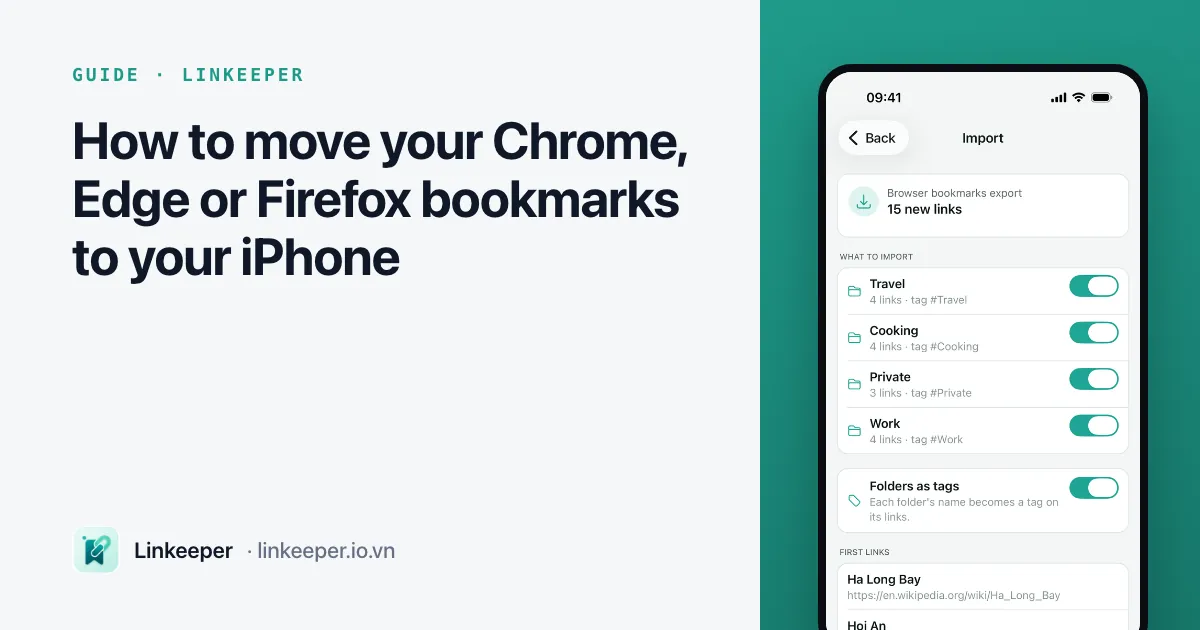
Most of us have years of bookmarks sitting in a desktop browser: tutorials, tools, documents, places we meant to visit. Then we try to open one on the phone and realise the iPhone has no idea they exist.
There is no single "import" button for this on iPhone, but there are three reliable routes. Which one is right depends on which browser you want to use on the phone, and whether you want the bookmarks to keep syncing or just to copy them over once.
Option 1: use the same browser on your iPhone and turn on sync
If you are happy using Chrome, Edge or Firefox on the iPhone too, this is the simplest path and it keeps both sides in sync from now on.
- 1Install the same browser on your iPhone from the App Store.
- 2Sign in with the same account you use on the computer (Google account for Chrome, Microsoft account for Edge, Mozilla account for Firefox).
- 3In the browser's settings, make sure sync is on and Bookmarks is included.
- 4On the computer, check the same: sync on, bookmarks included.
- 5Give it a minute, then open the bookmarks screen on the phone. Desktop bookmarks usually appear in their own folder, separate from the ones created on mobile.
The limit: the bookmarks live only in that browser. Links you open from other apps will still go to Safari, and nothing on the rest of your phone can search them.
Option 2: move them into Safari and let iCloud do the rest
If you would rather keep Safari as your browser on the iPhone, get the bookmarks into Safari on a computer first, then let iCloud carry them across.
On a Mac:
- 1Open Safari and choose File → Import From → Google Chrome (or Firefox). If your browser is not listed, export an HTML file from it first (see Option 3) and choose File → Import From → Bookmarks HTML File.
- 2Open System Settings → your name → iCloud and make sure Safari is turned on.
- 3On the iPhone, open Settings → your name → iCloud and turn on Safari there too.
- 4Open Safari on the iPhone and tap the bookmarks (book) icon. Imported bookmarks usually arrive in a folder named after the date or the source browser.
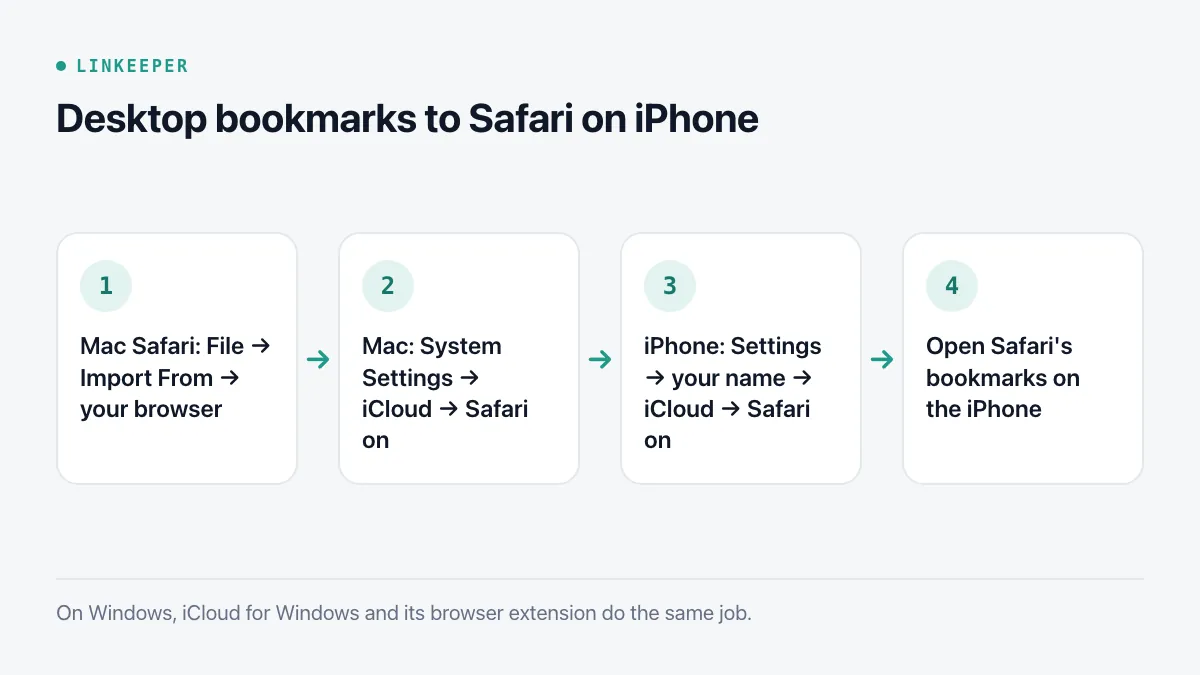
On Windows, Apple's iCloud for Windows app can sync bookmarks with Chrome, Edge or Firefox through a browser extension. Turn on Bookmarks in iCloud for Windows, install the extension it offers, and the bookmarks merge with Safari on your iPhone.
Option 3: export a bookmarks file
Every desktop browser can save all your bookmarks as a single HTML file. It is a one-off copy rather than a sync, but it is the most portable option: any browser and many apps can read it, and it doubles as a backup.
- Chrome: open chrome://bookmarks (or ⋮ → Bookmarks and lists → Bookmark manager), click ⋮ in the top bar, then Export bookmarks.
- Edge: open edge://favorites, click ⋯, then Export favorites.
- Firefox: open Bookmarks → Manage bookmarks, then Import and Backup → Export Bookmarks to HTML.
- Safari on Mac: File → Export → Bookmarks.
To get the file onto the iPhone, AirDrop it, save it to iCloud Drive or another cloud drive, or email it to yourself. On the phone it will appear in the Files app. Tapping it shows a plain page of links — readable, but not something you would want to browse every day. The point of the file is to hand it to something that can import it: Safari on a Mac, another browser, or a bookmark app.
Before you import: a five-minute clean-up
Moving bookmarks is a good moment to throw away the ones you will never open again. Years of bookmarks usually include duplicates, dead pages and folders with a single link in them.
- Delete obvious duplicates and anything you do not recognise.
- Open a few of the oldest links. If most of them are gone, the rest of that folder probably is too.
- Flatten deep folder trees. On a phone screen, three levels of folders is two levels too many.
- Rename vague folders ("Misc", "New folder") to what they are actually for.
Where Linkeeper helps
Options 1 and 2 keep your bookmarks inside a browser. If you want them next to the links you save from TikTok, Instagram and Facebook — and searchable in one place — Linkeeper on iOS can import the bookmarks file from Option 3.
- Go to Settings → Library → Import from other apps and pick your browser. Linkeeper shows how to get the export, then you choose the file. Bookmark files from Chrome, Safari, Edge, Firefox, Brave and Arc are supported.
- The file is read on your iPhone; it is not uploaded anywhere.
- You see a preview first and choose which folders to bring in.
- Folders become tags, and duplicates are skipped — both within the file and against links you already saved.
- If the result is not what you wanted, undo the whole import in one step.
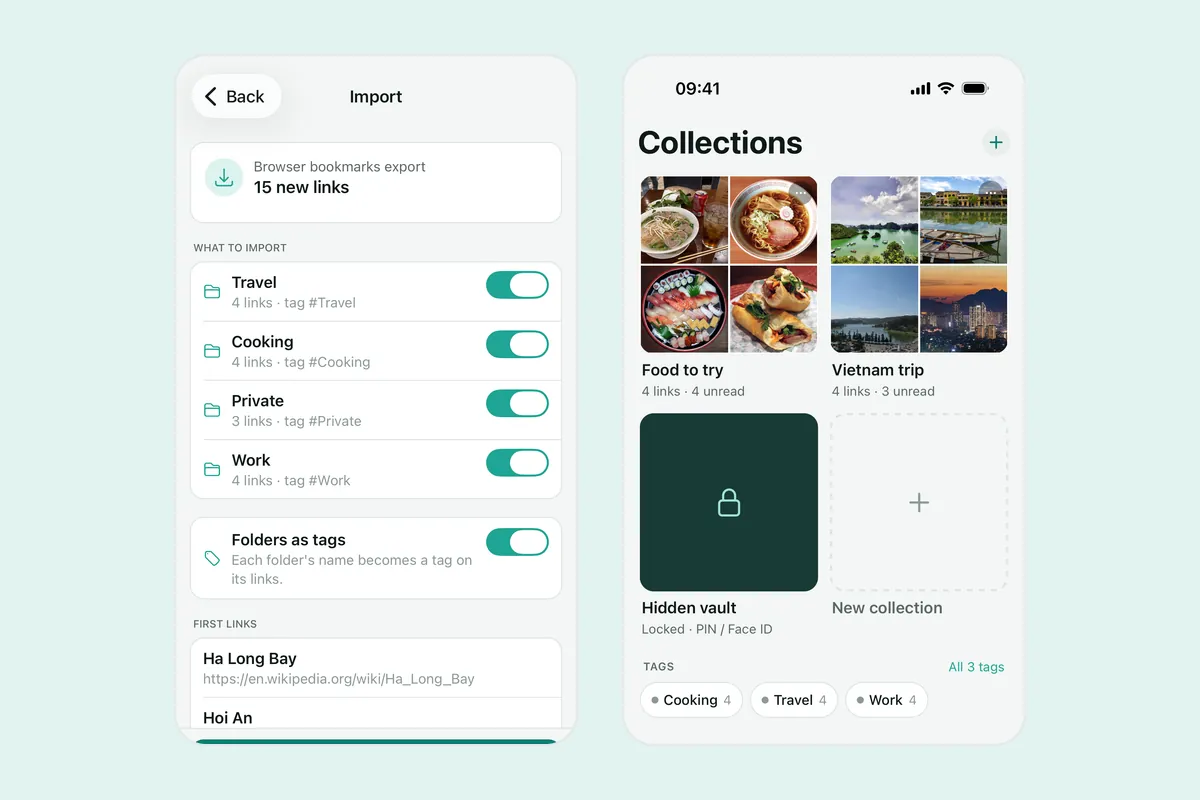
After that, every bookmark is searchable offline alongside everything you save from the Share menu. If you also have a Pocket library to move, see what to do with your Pocket export file.