How to open a link in Safari instead of the app on iPhone
Published · 4 min read
When you tap a link and an installed app opens instead of Safari, that is iOS Universal Links at work: the website has told iOS that its app should handle those addresses. iOS has no single setting that turns this off for every app. The reliable fix is per link: press and hold the link and choose the Open option that shows the Safari icon, if your iOS version and the app offer it.
This guide covers that gesture, two workarounds for when the option is missing, and how to keep a link without letting an app grab it. Menus differ between iOS versions and apps, so treat the wording below as a guide rather than a script.
Why does a link open the app instead of Safari?
Many sites, such as video, shopping and social sites, tell iOS that their app can open their web addresses. If the app is installed, tapping such a link in Messages, Mail, Notes or another app can open the app directly. This is called a Universal Link. It is a feature, not a bug, but it is annoying when you wanted the web page, for example because you are not signed in to the app or want to read the page without the app’s feed around it.
How do I open one link in Safari instead?
- 1Press and hold the link until a menu appears.
- 2Look for the Open option that has a Safari icon next to it and tap it. The page opens in Safari rather than in the app.
- 3If you only see a plain Open, or no menu at all, try the workarounds below.
Whether the Safari option appears depends on the app you are tapping the link in and your iOS version.
What if the Safari option is missing?
- Copy the link (press and hold, then Copy) and paste it into the Safari address bar. Addresses you paste there are opened as web pages.
- Check the app that is grabbing the links: some apps have their own setting for opening links in the app or in the browser, so look in that app’s settings.
- Use Share and pick a place to keep the link instead of opening it, then open it later from there.
Is there a setting to stop this for all apps?
iOS does not offer one switch for it. Searching Settings turns up per-app options at most, and the links the app handles are decided by the website and the app, not by you. Changing your default browser does not change which links an installed app claims.
How can I keep a link without an app taking over?
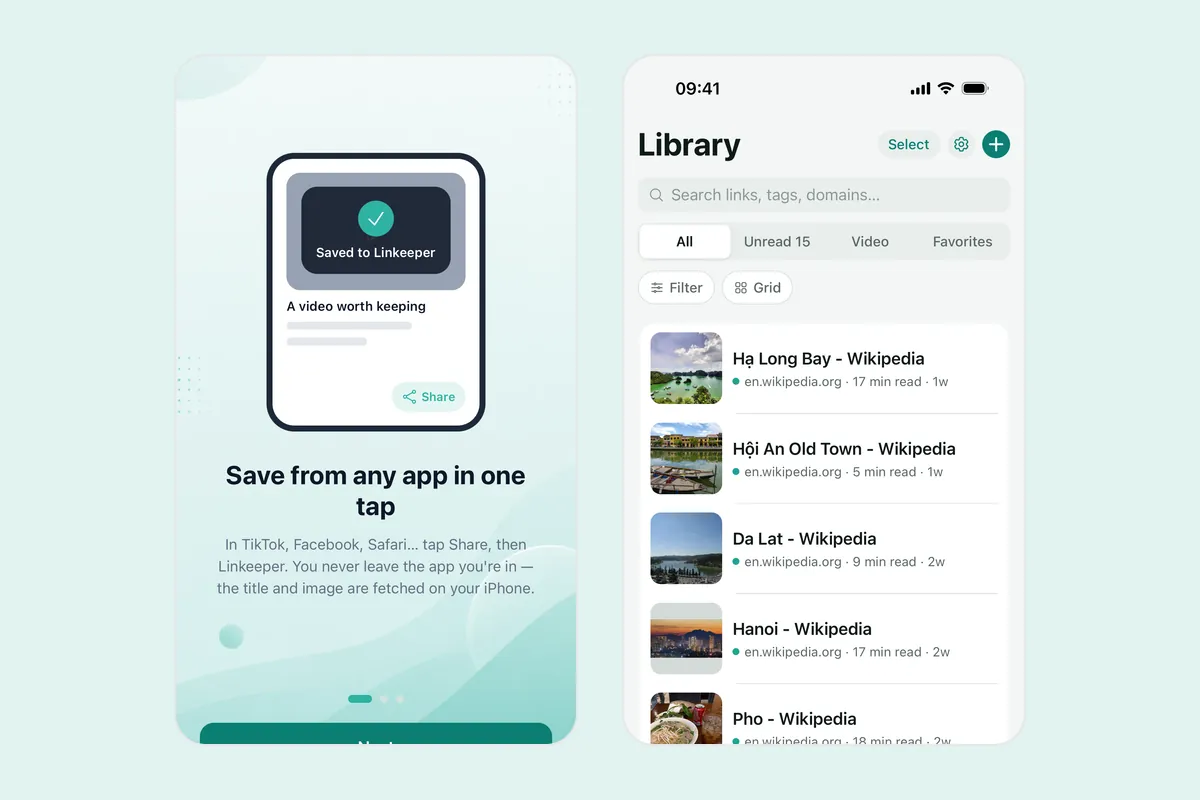
Linkeeper is an iPhone and iPad app that saves links from any app in one tap and keeps them in one organized, searchable library to read later. Save the link from the share sheet and nothing opens at the time.
Later, tapping a saved link opens it in Linkeeper’s own in-app browser or reader, so it does not jump to the website’s app. If you want the system to open it instead, press and hold the link in your library and choose Open in browser. That hands the address to iOS, which may open the site’s app if one is installed.
To get Linkeeper into your share sheet, see how to add an app to the iPhone share sheet. For links you copied earlier, see how to find a link you copied on iPhone. If the link came from a social app’s built-in browser instead, see how to copy a link from the in-app browser.
Frequently asked questions
- Why do links open in an app instead of Safari on my iPhone?
- The website has told iOS that its app handles those addresses (Universal Links), so a tap opens the installed app.
- How do I open a link in Safari instead of the app?
- Press and hold the link and choose the Open option with the Safari icon, if it is offered. Otherwise copy the link and paste it into Safari’s address bar.
- Can I turn off app links for all apps?
- No single iOS switch does this. Some apps have their own setting for opening links.
- Does Linkeeper open saved links in other apps?
- Tapping a saved link opens it in Linkeeper’s in-app browser or reader. Open in browser in the link menu hands it to iOS, which may open the site’s app.