
How to save TikTok, Instagram and Facebook links to watch later on iPhone
Published · 6 min read
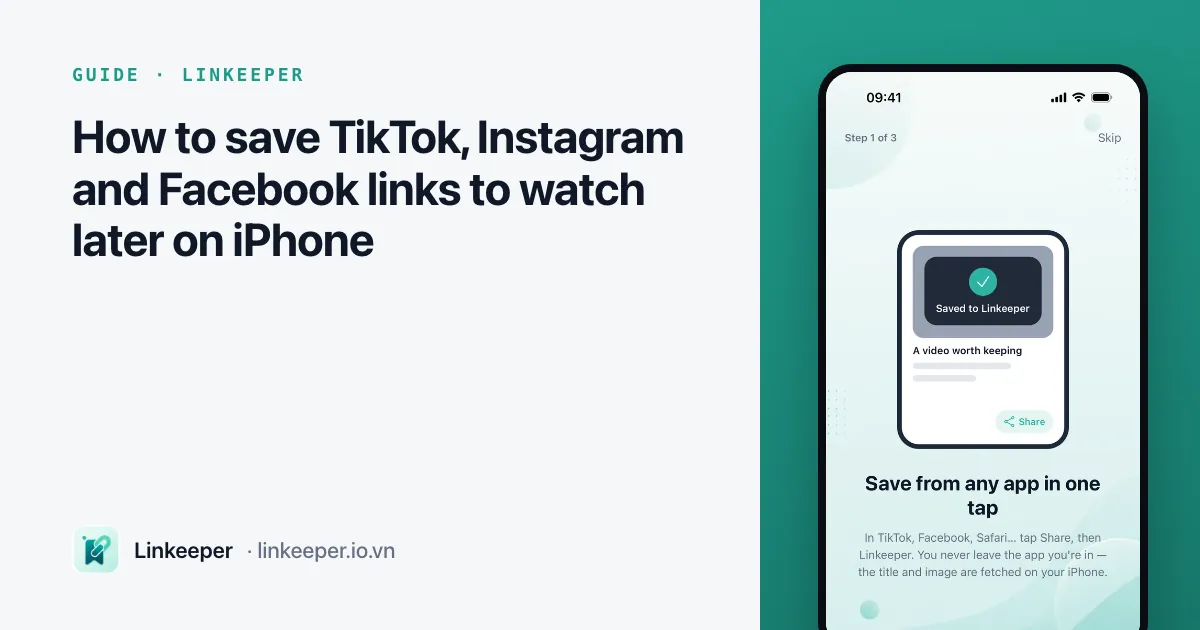
You see a recipe on TikTok, a thread on Facebook and a carousel on Instagram, and you tap Save on each one. A week later you remember one of them, but not which app it was in. That is the real problem with saving things on a phone: every app has its own Saved tab, none of them talk to each other, and searching them is slow or impossible.
This guide walks through the built-in save features of each app, then shows how to collect links in one place using only what comes with your iPhone. At the end there is a short section on where a dedicated link app fits in, if you want one.
Save inside each app (the quick option)
Every major app has a bookmark button. It costs one tap and keeps the post inside that app, so it is the right choice for things you will probably come back to within the same app.
- TikTok: tap the bookmark icon on the right side of the video. You find it later on your Profile, under the bookmark (Favorites) tab, where you can also group videos into collections.
- Instagram: tap the bookmark icon under the post. Saved posts live in your Profile → menu (☰) → Saved, and you can sort them into collections there.
- Facebook: tap ⋯ on the post and choose Save post. Open Menu → Saved to see everything, or visit facebook.com/saved on a computer.
- YouTube: tap Save under the video and choose Watch later or one of your playlists.
The catch is that each list only knows about its own app. If you do not remember where you saw something, you have to scroll four Saved tabs. And none of them let you search the title of what you saved in a useful way.
Copy the link so it can leave the app
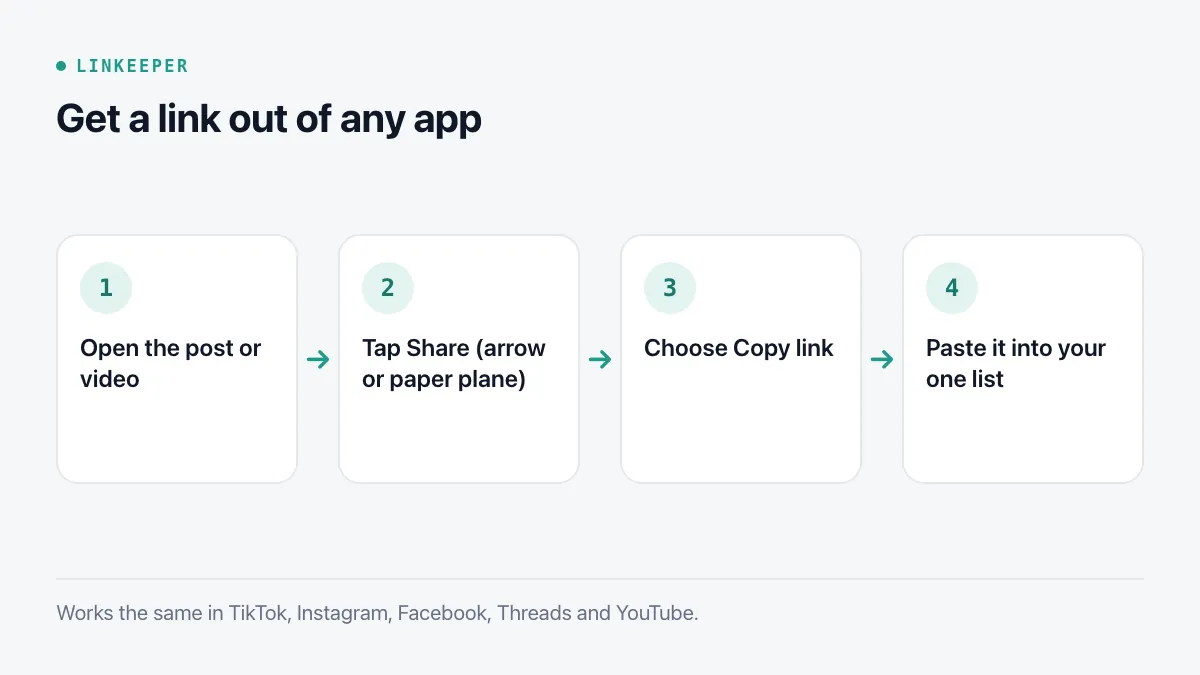
To keep things in one place you need the link itself. Every app gives it to you through the Share button:
- 1Open the post or video.
- 2Tap Share (the arrow or paper-plane icon). On Facebook you can also tap ⋯.
- 3Choose Copy link. The link is now on your clipboard.
- 4Paste it wherever you keep your list — see the next section.
Build one list with apps you already have
You do not need to install anything to get a single list. Three built-in options work well, each with a trade-off:
- Safari Reading List: open the link in Safari, tap Share, then Add to Reading List. It syncs through iCloud and can keep pages for offline reading if you turn on the automatic offline save option in Safari's settings. It works best for articles; social posts often need you to be signed in, so the offline copy may be just a login page.
- Notes: create a note called "Watch later" and paste links into it, one per line, with a few words of context. It is searchable and syncs, but links do not show a preview and the note gets long fast.
- Reminders: paste a link into a new reminder in a "Read later" list. You can set a date for things that are time-sensitive, like an event or a sale.
Whichever you pick, the habit matters more than the tool: when you save, add one or two words about why ("dinner idea", "Da Lat trip"). Six months later the title of a TikTok video will not mean anything; your note will.
Keep the list from turning into a graveyard
Saved lists grow quietly until they are too big to use. A few small routines keep them useful:
- Group by purpose, not by app. "Recipes" is easier to search than "TikTok saves".
- Review once a week. Open the list, act on two or three items, and delete what no longer matters.
- Separate private links. Things you would not want someone to see over your shoulder deserve their own locked space rather than sitting in a shared note.
- Remember that a link is not a copy. If the creator deletes a post or makes their account private, the saved link stops working. If something is truly important, write down the key information too.
Where Linkeeper helps
The built-in tools above work, but they share one weakness: getting a link from a social app into the list takes several taps every single time. Linkeeper was built to remove that step.
- Tap Share in TikTok, Facebook, Instagram, Threads, YouTube or Safari, choose Linkeeper, and the link is saved without opening the app.
- The title, description and thumbnail are filled in for you, so the list reads like a feed instead of a column of URLs.
- Links are tagged by source automatically, and you can add your own tags and collections.
- Search works on your device, even offline, and ignores Vietnamese diacritics — "du lich" finds "Du Lịch".
- Private links can go in a hidden vault protected by a PIN and Face ID.
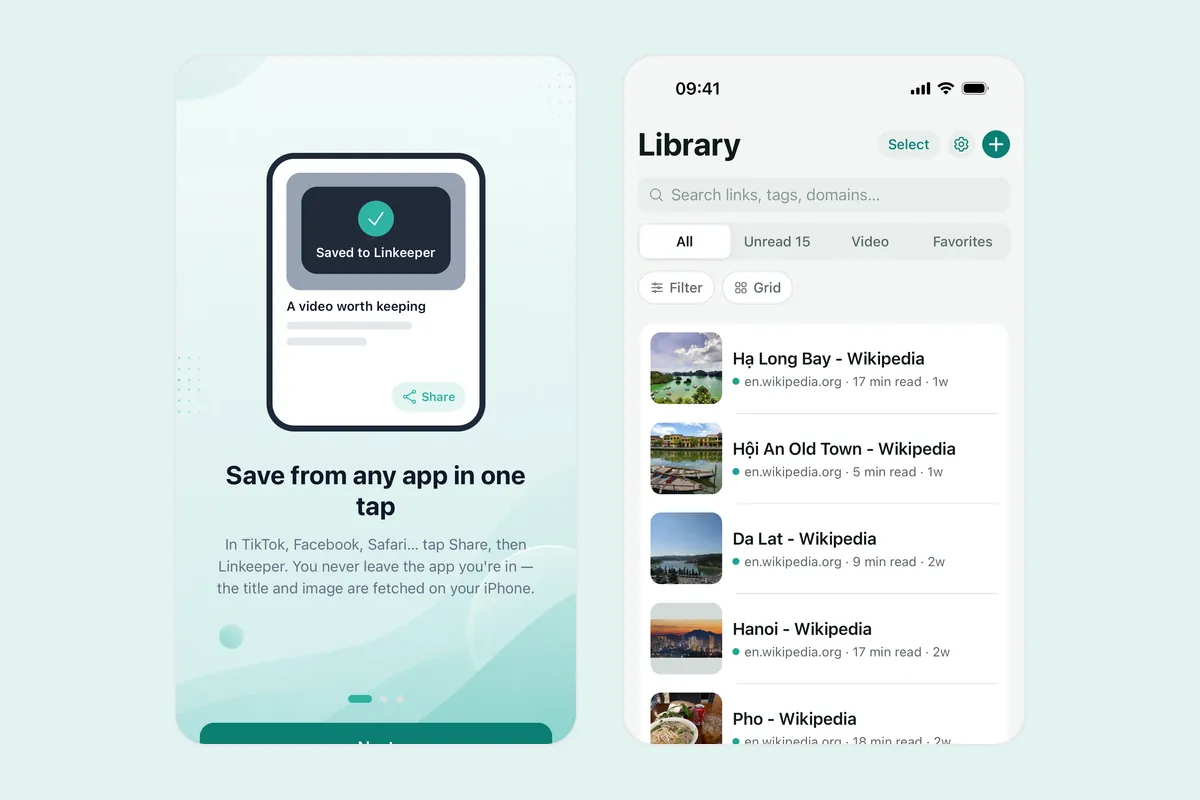
If you already have hundreds of posts saved inside TikTok or Instagram, Linkeeper on iOS can also import those exports — and browser bookmarks — so you start with one list instead of an empty one. The guide on moving browser bookmarks to iPhone covers the bookmark side of that.