How to mark a Reading List item as unread in Safari on iPhone (and show only unread)
Published · 4 min read
You opened an article from your Reading List, got interrupted, and now it counts as read. Or you want to see only what is still waiting. Safari can do both, but the controls are hidden behind a swipe and a small menu.
This guide shows where they are, and what to use if you want an unread list that is easier to keep short. Menu layouts differ between iOS versions, so if yours looks different, use the closest match.
How do I mark a Reading List item as unread on iPhone?
- 1Open Safari and tap the Bookmarks button (the open book).
- 2Tap the Reading List tab (the glasses icon).
- 3Swipe right on the item. Tap Mark as Unread. On an item you have not read yet, the same swipe offers Mark as Read instead.
The item moves back among the unread ones, shown in bold or with a blue dot depending on your iOS version. Reading List syncs through iCloud, so the change should appear on your other Apple devices.
Swipe left on an item to delete it instead. That removes it, it does not mark it as read.
How do I show only unread items?
In the Reading List tab, look for Show Unread. On many iOS versions it is a button at the bottom of the list; on newer ones it is reported to be inside the three-dots menu. Choose Show Unread to hide what you finished, and Show All to bring everything back.
I could not confirm the exact position against Apple’s own iPhone documentation, which these results only cover for Mac. If you do not see it, look at the bottom of the list and in any menu on that screen.
Why does the list fill up with items I already read?
Safari keeps read items in the Reading List until you remove them, and it has no automatic clean-up. Over time a list of fifty unread items turns into hundreds of mixed ones, and the filter only hides the problem. To empty it in bulk, see how to clear your Safari Reading List.
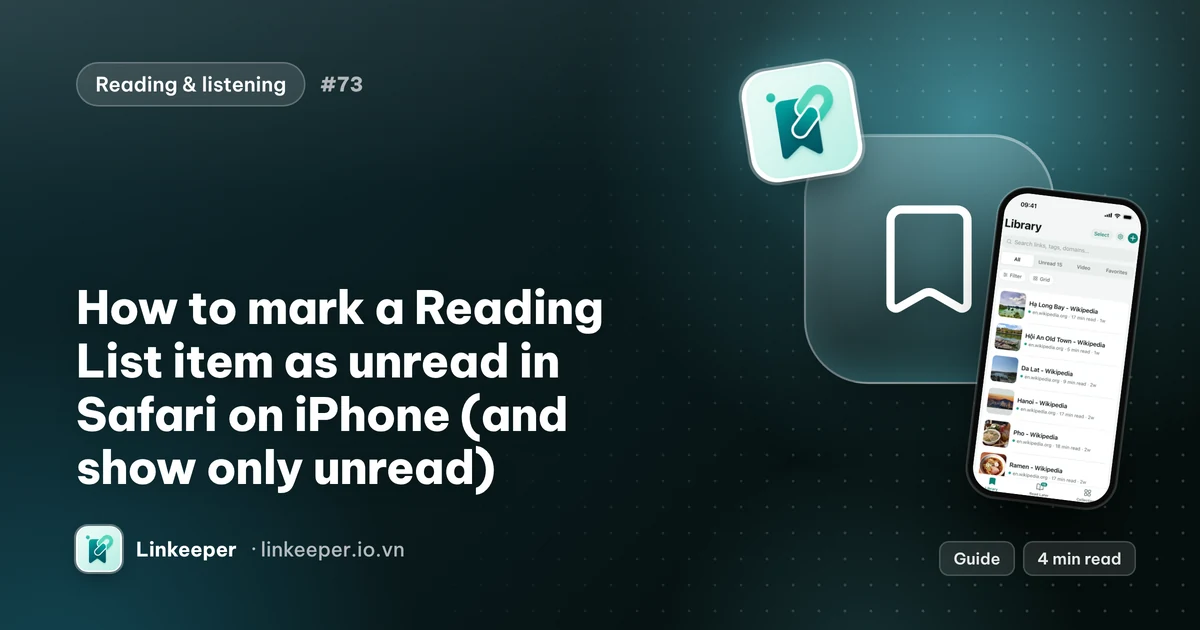
Linkeeper is an iPhone and iPad app that saves links from any app in one tap and keeps them in one organized, searchable library to read later. It tracks read and unread for every saved link. A link you open from the app is marked read. To flip it back, swipe right on the row (the same swipe marks an unread link as read), or long-press the link and choose Mark as unread. Each swipe shows a short Undo.
To see only what is waiting, open the Library and use the Unread filter, next to All and Favorites. Unread links also carry a small dot. A link can be archived without deleting it, and once a day the app can bring back one unread link you forgot. All of this runs on the iPhone and works offline, without an account.
For a comparison of the two, see Linkeeper vs Safari Reading List. For habits that keep an unread pile from growing, see how to actually read the articles you save.
Frequently asked questions
- Does opening a Reading List item mark it as read in Safari?
- In Safari, items you have read are tracked as read, and you can flip one back with a swipe right and Mark as Unread. If an item became read by accident, use that swipe.
- How do I see only unread items in the Safari Reading List?
- Open Bookmarks, then the Reading List tab, and choose Show Unread. Its position depends on your iOS version, so check the bottom of the list and the menu on that screen.
- Does marking unread on iPhone change it on my Mac?
- Reading List syncs through iCloud, so it should. If it does not, see Reading List not syncing between iPhone and Mac.
- Can I mark a saved link as unread in Linkeeper?
- Yes. Swipe right on the link, or long-press it and choose Mark as unread. Opening a link from the app marks it read, so this is how you put it back.