
How to save web pages to read offline on iPhone
Published · 5 min read
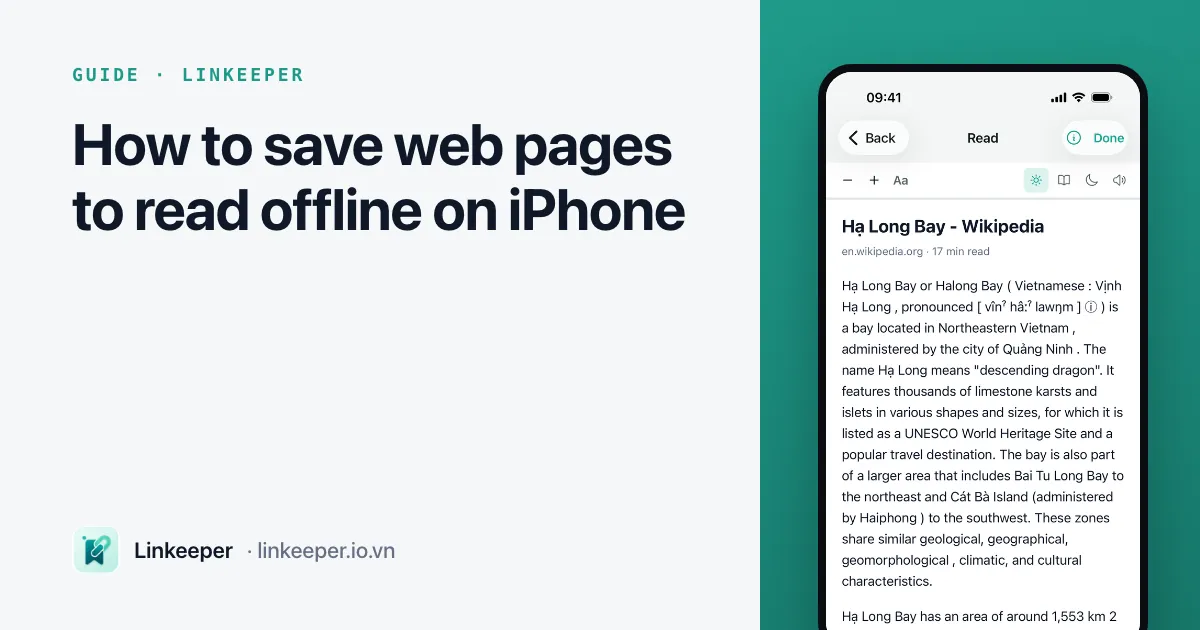
The quickest way to read a web page offline on iPhone is Safari's Reading List: tap Share → Add to Reading List, and with Automatically Save Offline turned on, Safari downloads a copy you can open without a connection. For a permanent copy that will not change or disappear, save the page as a PDF in the Files app instead.
This guide walks through both methods step by step, shows how to make pages easier to read with Reader view, and explains which kinds of pages do not survive offline — so you are not surprised on a plane.
How do I add a page to Safari's Reading List?
Reading List is built into Safari and syncs through iCloud to your other Apple devices. It is the best fit for articles you plan to read soon.
- 1Open the article in Safari.
- 2Tap the Share button (the square with an arrow pointing up).
- 3Choose Add to Reading List. You can also touch and hold the Bookmarks button (the open book) and choose Add to Reading List.
- 4To read it later, tap the Bookmarks button, then the Reading List tab (the glasses icon).
In the Reading List you can swipe left on an item to delete it, or swipe right to mark it as read, so the list only shows what is still waiting.
How do I make Reading List save pages offline?
Adding a page to Reading List does not always download it. Check the setting once:
- 1Open Settings → Apps → Safari (on iOS 17 and earlier, it is simply Settings → Safari).
- 2Scroll down to the Reading List section.
- 3Turn on Automatically Save Offline.
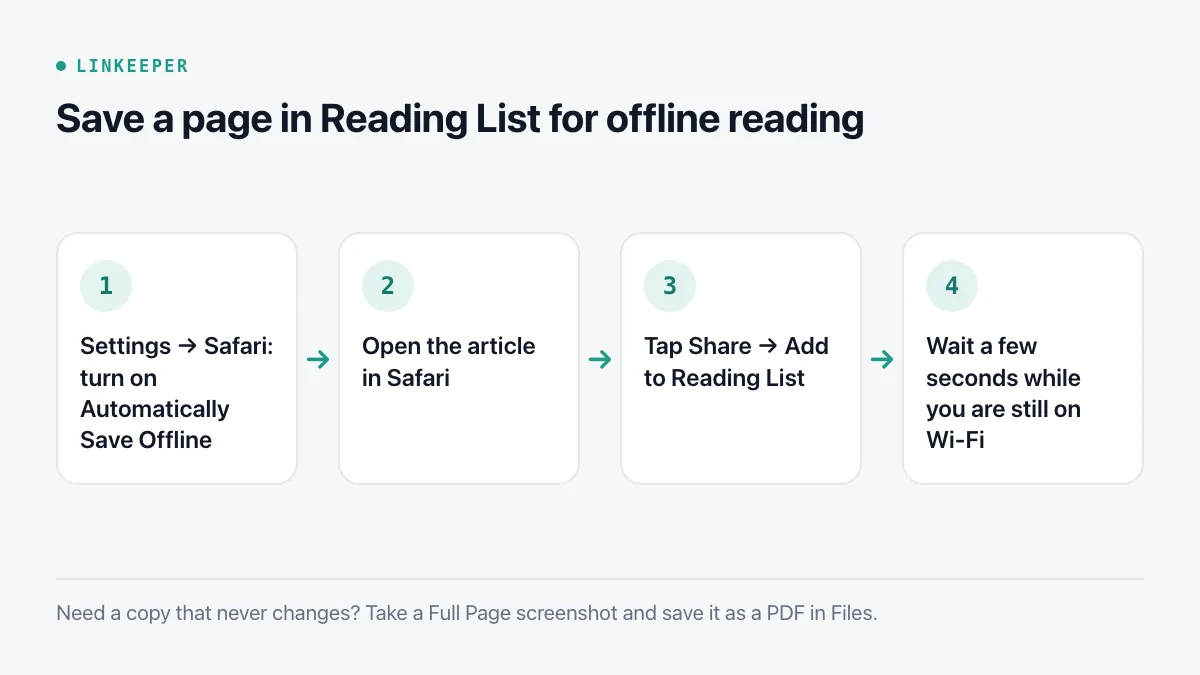
From now on, every page you add is downloaded while you still have a connection. For a page that was added before you turned the setting on, open the Reading List, touch and hold the item, and choose Save Offline.
How do I save a web page as a PDF on iPhone?
A PDF is a fixed copy: it keeps the text and images exactly as they looked, even if the website later changes the article or takes it down. That makes it the better choice for receipts, instructions or anything you want to keep for good.
- 1Open the page in Safari and take a screenshot (side button + volume up, or the Home button on older models).
- 2Tap the screenshot preview in the corner, then choose Full Page at the top. This captures the whole page, not just what is on screen.
- 3Tap Done, then Save PDF to Files, and pick a folder.
There are two other routes to the same result. In Safari, tap Share and choose Save to Files when it is offered; or tap Share → Print, then use the Share button on the print preview to save it as a PDF. Whichever you use, the file lives in the Files app and opens without any connection.
How can I make saved pages easier to read?
Safari's Reader view strips menus, pop-ups and ads and shows just the article text. When a page supports it, tap the page settings button at the left of the address bar (it looks like a small page icon) and choose Show Reader.
- In Reader you can change the font, text size and background color from the same menu.
- Pages opened from the Reading List can open in Reader as well, which also makes them lighter to store.
- If you save a PDF while Reader is on, the PDF contains the clean version of the article.
What does not work offline?
Offline copies are snapshots, and some pages do not snapshot well:
- Paywalled articles: you only get what was visible when the page loaded. Open and scroll through the full article while signed in before saving.
- Videos and embedded posts: they usually need a live connection and show up as blank boxes.
- Pages that load content as you scroll, such as feeds, search results or long comment threads: only the part that had loaded is kept.
- Links inside the saved page still lead to the live web, so they will not open offline.
Social posts in particular are better saved as links than as pages. If most of what you save comes from TikTok or Instagram, see how to save social links to watch later.
Where Linkeeper helps
Reading List works well if you only read in Safari. If links reach you from many apps — chats, TikTok, Facebook, YouTube — Linkeeper keeps them in one list on your iPhone.
- Share a link from any app to save it; the title and thumbnail are fetched for you.
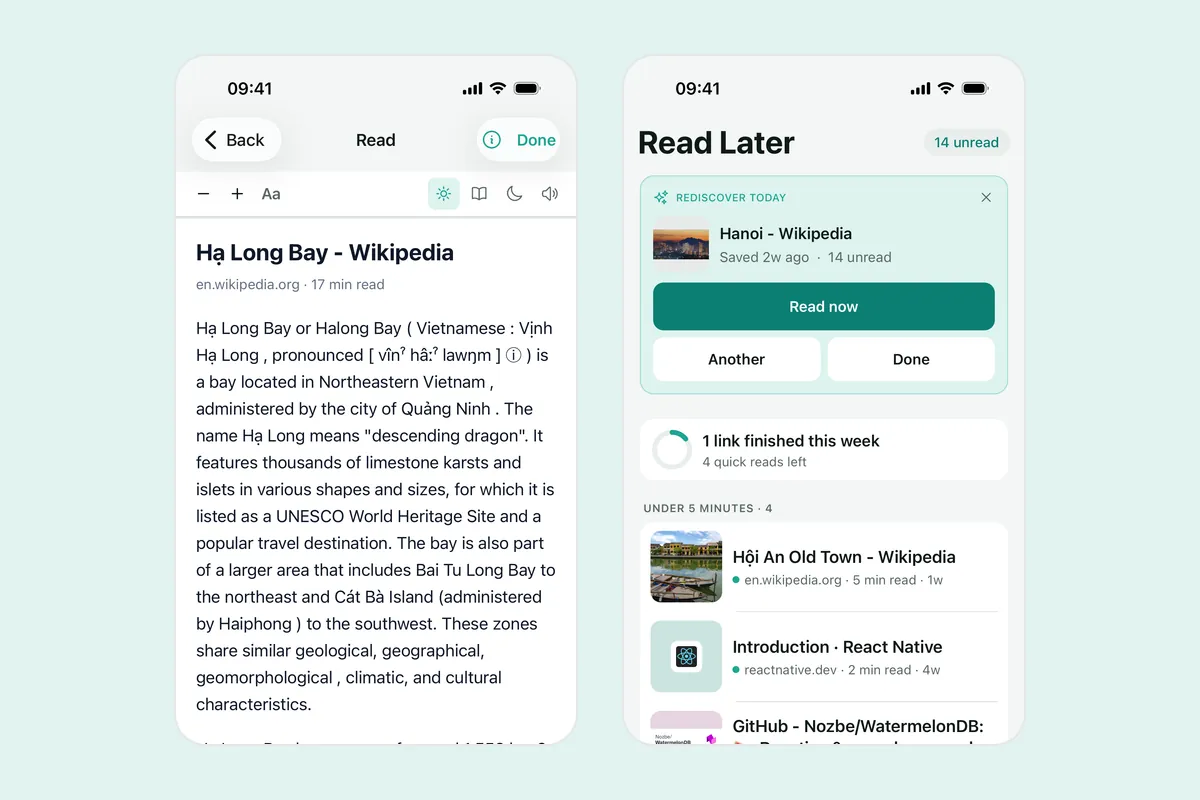
- An offline reader mode shows saved articles as clean text, and an in-app browser opens anything else.
- Read and unread states show what is still waiting, and search runs on the device, so it works without a connection.
Saving is only half of it; if your list keeps growing, these habits for actually reading what you save help. Questions about how Linkeeper stores your links are answered in the FAQ.