
How to add a website to your iPhone Home Screen (and when saving the link is better)
Published · 5 min read
To add a website to your iPhone Home Screen, open the page in Safari, tap the Share button, scroll down and choose Add to Home Screen, then tap Add. The icon appears next to your apps and opens the site in one tap. The exact behaviour depends on your iOS version, and it is a good fit for a few sites you open every day, not for every page you want to keep.
This guide shows the steps, explains what changed in iOS 26, how to remove an icon you no longer want, and what to do when what you really need is a way to keep many links without filling a screen with icons.
How do I add a website to the Home Screen?
Use Safari for this. Other browsers may not offer the option, so if you are in another app, open the page in Safari first.
- 1Open the page you want in Safari.
- 2Tap the Share button (the square with an arrow pointing up). On some versions it sits behind the three dots next to the address bar.
- 3Scroll down the list and tap Add to Home Screen. If you do not see it, tap View More or Edit Actions to find it.
- 4Change the name if you like. It is the label shown under the icon, so keep it short.
- 5Tap Add (or Add to Home Screen). The icon is placed on your Home Screen and you can drag it like any app.
Open the exact page you want before you add it. The icon points to that address, not to the site's front page.
What does “Open as Web App” mean on iOS 26?
On iOS 26 and iPadOS 26, the Add to Home Screen screen has an Open as Web App switch. Turned on, the site opens in its own full-screen window instead of inside Safari. Turned off, the icon works as a plain bookmark and opens the page in Safari. Apple turns the switch on by default.
On earlier iOS versions the result depends on the site: a site built as a web app opens full screen, and any other site opens in Safari from the icon. If an icon opens in a way you did not expect, remove it and add it again with the switch set the other way.
How do I remove an icon from the Home Screen?
- 1Touch and hold the icon until a menu appears.
- 2Tap Remove App.
- 3Confirm the removal when asked.
Removing a website icon only deletes the shortcut. The site itself, your account on it and your Safari bookmarks are not affected.
When is an icon the wrong tool?
A Home Screen icon is perfect for something you open daily, such as a timetable, a work dashboard or a bus schedule. It works badly for most links:
- Every icon takes a slot on a screen that is already full of apps, and ten of them is clutter.
- An icon has a name and nothing else: no note, no tag, and you cannot search for it.
- It opens the live page. If the page has moved or been taken down, the icon is useless and says nothing about what it used to be.
- You cannot add an icon from inside most apps. Share sheets in social and chat apps usually offer Copy or Save, not Add to Home Screen.
For an article you want to read, a recipe, a product or a post from a feed, save the link instead. Safari bookmarks work if everything comes from Safari; how to organize bookmarks with tags or folders compares the two ways to sort them.
How does Linkeeper fit in?
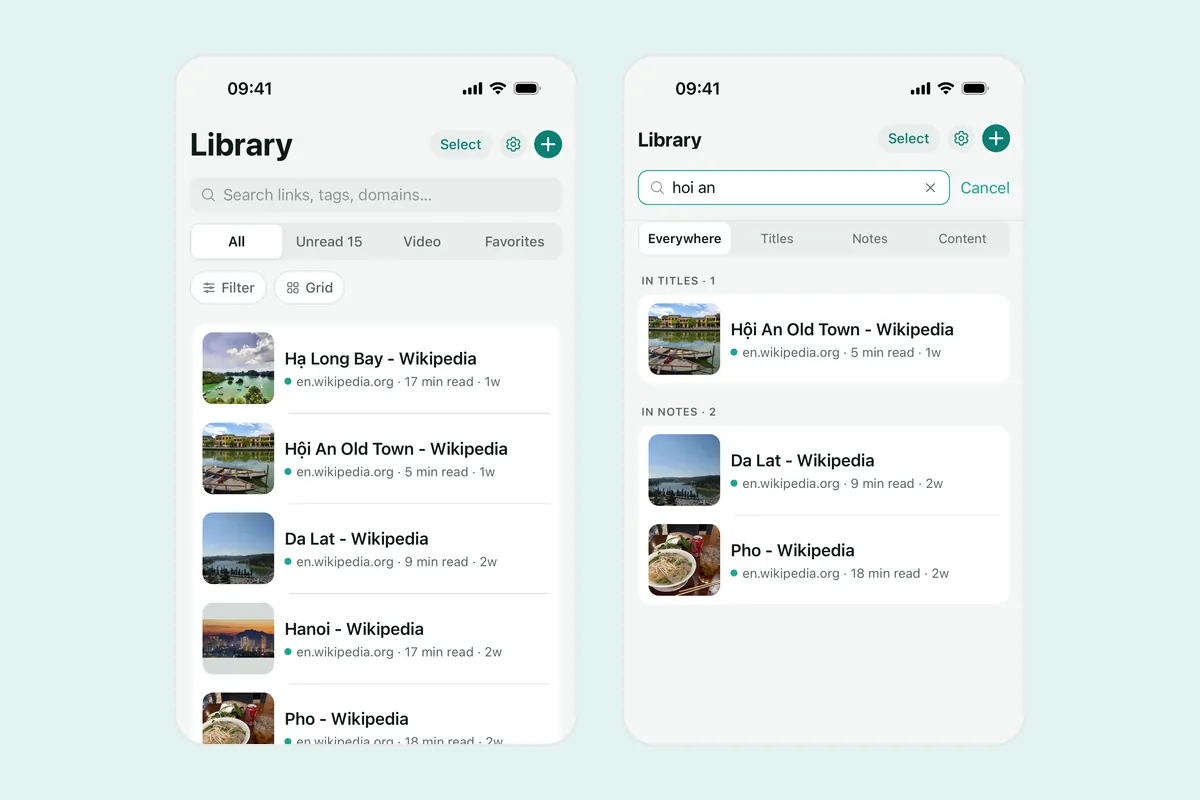
Linkeeper is an iPhone and iPad app that saves links from any app in one tap and keeps them in one organized, searchable library. It covers what icons cannot:
- Share a page from Safari or any app with a share sheet, choose Linkeeper, and it is saved without leaving the page. The title and thumbnail are filled in when the page provides them.
- Links can have a note, tags, a favorite star and a place in a collection, and search works offline and ignores Vietnamese diacritics.
- Linkeeper has a Home Screen widget in small and medium sizes. It lists the titles and sites of your most recent saves and refreshes on its own schedule, so your newest links are on the Home Screen without one icon per page.
Linkeeper does not create Home Screen icons for individual websites. For those, use Safari's Add to Home Screen as described above.
Frequently asked questions
- Why is there no Add to Home Screen option on my iPhone?
- You are probably not in Safari. Open the page in Safari, tap Share and scroll down; if the option is still missing, tap View More or Edit Actions to find it. Some pages and iOS settings can also hide it.
- Is a Home Screen website icon the same as an app?
- No. It is a shortcut to a web page. On iOS 26 it can open as a web app in its own window, but it is not downloaded from the App Store and does not work offline unless the site itself supports that.
- Can I add a website icon to the Home Screen from Chrome?
- It depends on the browser and its version, so open the page in Safari to be sure. Safari is the browser whose steps are described here.
- What is a better way to keep many websites than icons?
- Save the links in one list with notes and tags. Safari bookmarks work if you only use Safari; an app such as Linkeeper saves from any app's share sheet and searches the whole list offline.
- Does Linkeeper need an account?
- No. Links, notes, tags and collections are stored on your iPhone first. Signing in with Apple or Google is optional and only used to sync your library between devices.